Language - Java: Difference between revisions
| Line 102: | Line 102: | ||
| Navigate to the folder where you downloaded phidget22.jar, and select it. || [[Image:Windows_netbeans3.jpg|center|350px|link=https://cdn.phidgets.com/docs/images/7/76/Windows_netbeans3.jpg]] | | Navigate to the folder where you downloaded phidget22.jar, and select it. || [[Image:Windows_netbeans3.jpg|center|350px|link=https://cdn.phidgets.com/docs/images/7/76/Windows_netbeans3.jpg]] | ||
|- | |- | ||
| The project now has access to Phidgets. || | | The project now has access to Phidgets. By default, Netbeans should create an executable .jar file in the '''dist''' folder of the project directory when it's built. If it didn't, go to '''Build -> Packaging''' in the project properties and make sure "Build JAR after compiling" is checked.|| [[Image:Windows_netbeans4.png|center|350px|link=https://cdn.phidgets.com/docs/images/7/78/Windows_netbeans4.png]] | ||
|- | |||
| colspan="2"| You can now run the .jar file from the command prompt with: | |||
<syntaxhighlight> | |||
java -jar phidgetTest.jar | |||
</syntaxhighlight> | |||
|} | |} | ||
Revision as of 19:48, 1 April 2026
Get Started
With the Phidget22 library, it's easy to create Java applications that work with Phidget devices.
Java Libraries
You must install the Phidget drivers for your operating system to be able to compile and run Java programs.
Your Java project will also require our Java library file:
macOS Considerations
Legacy Phidgets running a HID USB stack require a driver extension (macOS 10.15 and newer) or a kernel extension (macOS 10.14 and earlier). During development, we recommend downloading the appropriate package which will install the extension. When deploying applications, review the README in the macOS Development Files for information about bundling the extension with your application.
Determining USB Stack
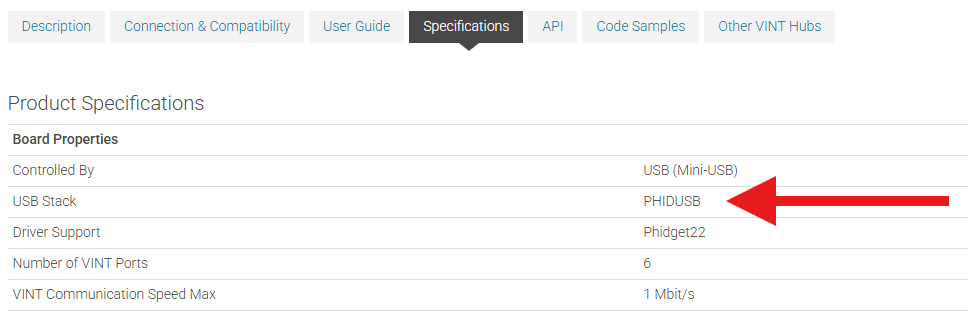
To determine which USB stack your device is running, navigate to the product page and then to the specification tab, and look for the USB Stack specification. If you are using a VINT device, navigate to the product page for the VINT Hub you are using.
Linux Considerations
Linux restricts access to USB devices to the root user. To run your Python application as a regular user, you'll need to set up udev rules on your system.
Development Environment Configuration
Before choosing a development environment, make sure you have the Java Development Kit installed.
Visual Studio Code
| To start developing with Java in VSCode, open it up and install the Extension Pack for Java. | 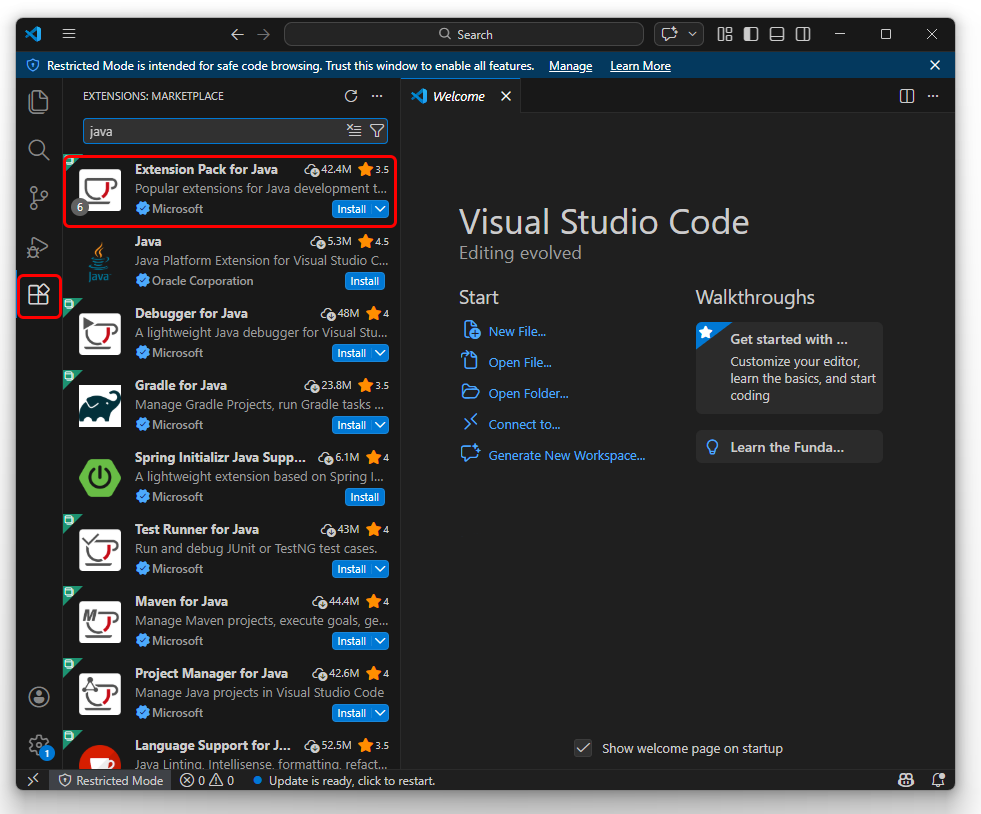 |
| Next, press Ctrl+Shift+P to open the command palette, type "java" and select Java: Create Java Project. | 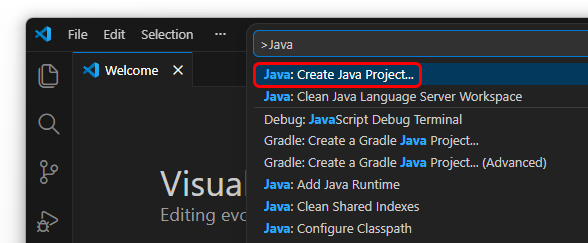 |
| Select "No Build Tools" and select a directory for the new project. You'll be asked for a project name, and VSCode will create the directory structure. | 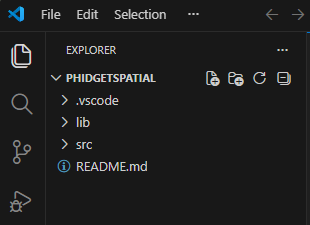 |
| You'll need to get a copy of phidget22.jar to put inside the "lib" folder. You can download phidget22.jar here. | |
| You can now begin writing code in the newly created "App.java" file, or you can download a sample program for your device and place it in the "src" folder. | |
| Compile and run by pressing F5 or by clicking the play button in the top right. | 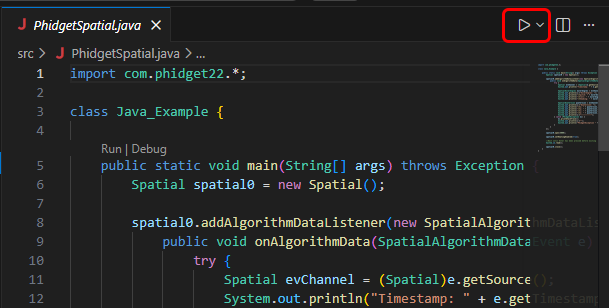 |
| Once you're ready to compile your project into a .jar executable, click on the Java Projects section in the explorer. | 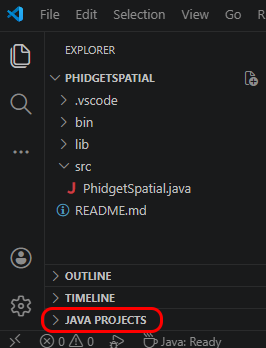 |
| Click on the export icon, and then select your main class and click OK. | 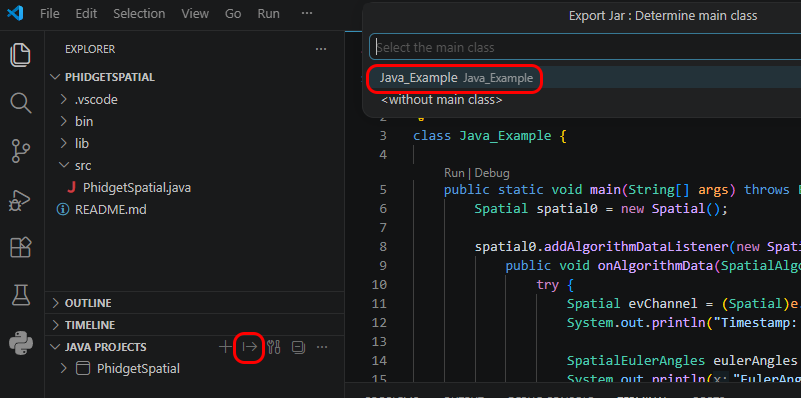 |
Now you can run your new .jar file with the following command:
java -jar Example.jar | |
Javac
| The easiest way to allow Java to access the Phidgets Java library is to place a copy of phidget22.jar in the same folder as your .java program. | 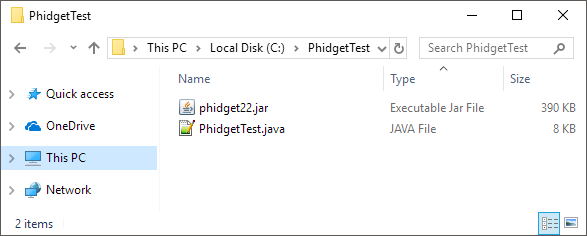 | |
| You can download phidget22.jar here. | ||
To run your program, enter the following command in the command prompt or terminal:
javac -classpath .;phidget22.jar example.javaThen, enter the following command to run the program: java -classpath .;phidget22.jar example |
||
Once you're ready to compile your project into a .jar executable, create a manifest.mf file with the following contents:
Manifest-Version: 1.0
Main-Class: example
Class-Path: phidget22.jar
Make sure there's an empty newline at the bottom of the three lines and a space after each colon. | ||
Next, create the .jar file with this command:
jar cfm example.jar manifest.mf *.classOnce the .jar is created, you can execute it with java -jar example.jar | ||
Netbeans
| The easiest way to allow Java to access the Phidgets Java library is to place a copy of phidget22.jar in the same folder as your .java program. | |
| You can download phidget22.jar here. | |
| To start, open NetBeans and create a new project. Select Java Application and follow the steps as directed by Netbeans. | 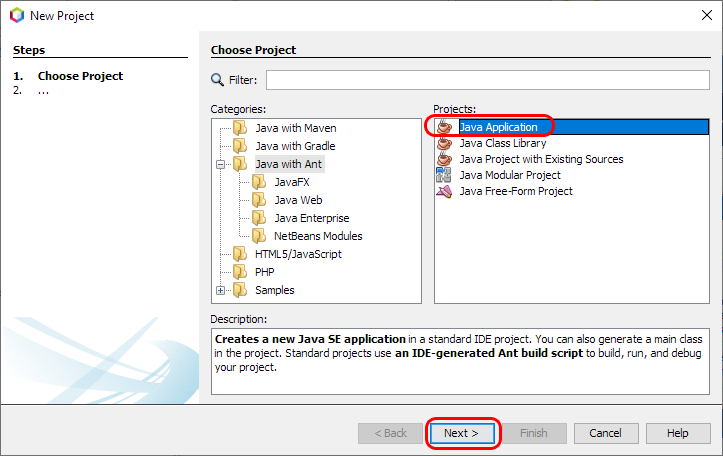 |
| Next, add a reference to phidget22.jar by right-clicking on the libraries folder. | 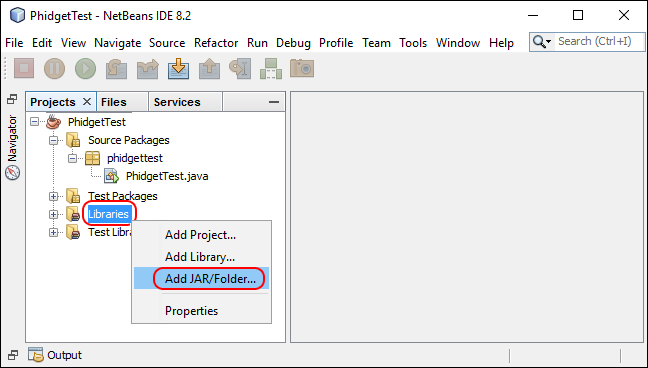 |
| Navigate to the folder where you downloaded phidget22.jar, and select it. | 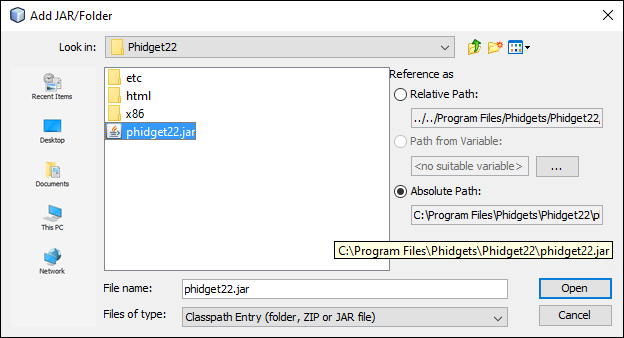 |
| The project now has access to Phidgets. By default, Netbeans should create an executable .jar file in the dist folder of the project directory when it's built. If it didn't, go to Build -> Packaging in the project properties and make sure "Build JAR after compiling" is checked. | 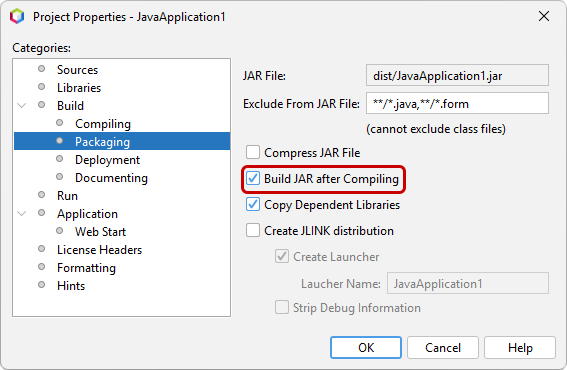 |
You can now run the .jar file from the command prompt with:
java -jar phidgetTest.jar | |
Eclipse
| To start, open Eclipse and create a new Java project. Name the project and uncheck the create module-info.java file box. | 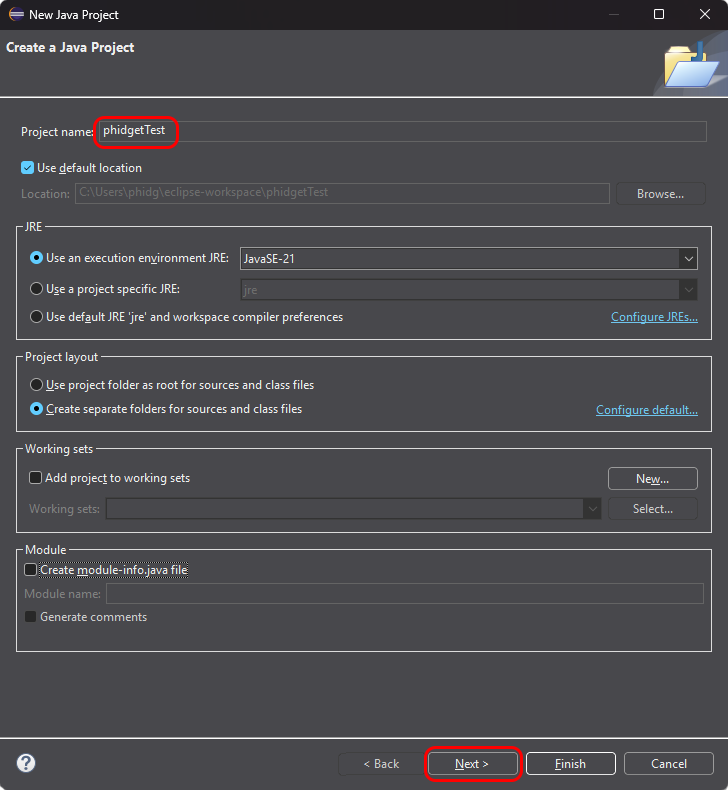 |
| On the Libraries tab, click Add External JARs and add phidget22.jar to your project as an external jar. Be sure it's being added to the Classpath and not the module path. | 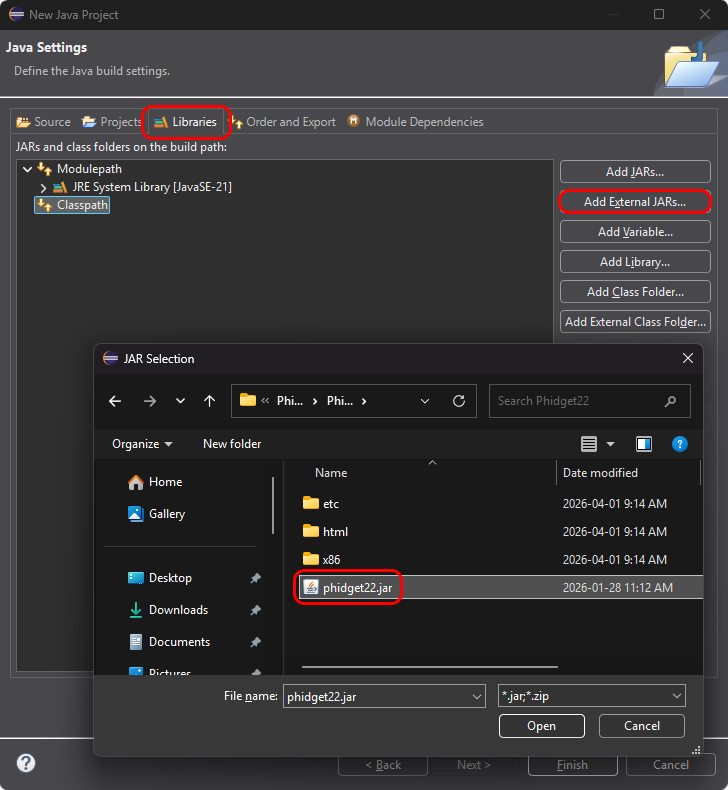 |
| Create a new Class in your project. | 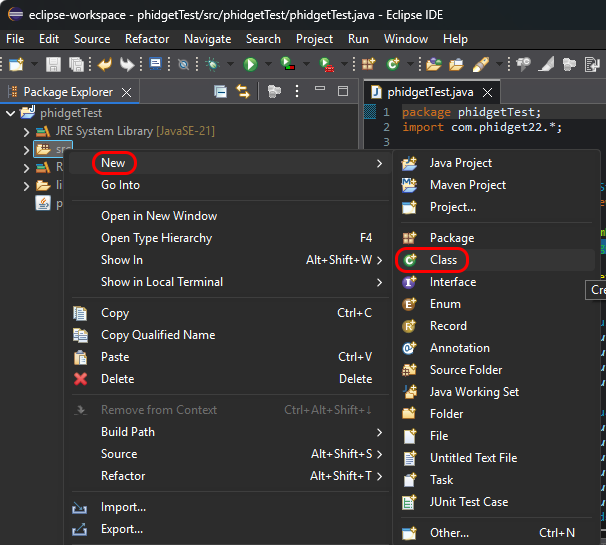 |
| Name the class, and be sure to check the public static void main box. Eclipse may require that you add a package name. | 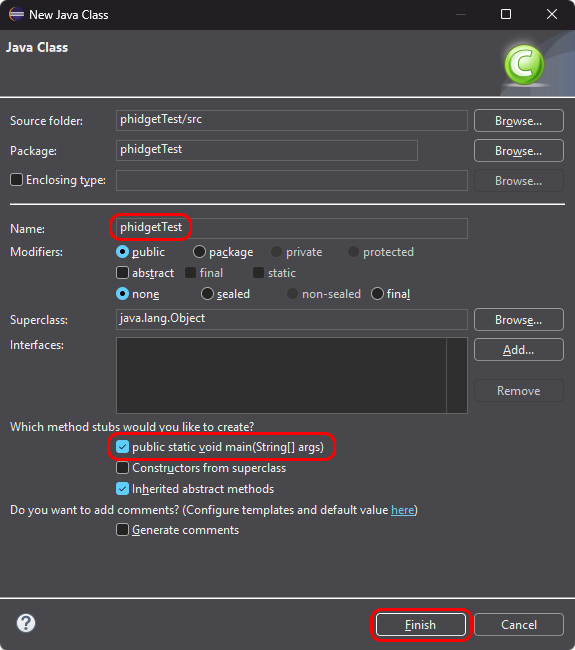 |
| Your project now has access to Phidgets! | |
| Once you're ready to compile your project into a .jar executable, right click on the project in the package explorer and choose Export. Select Runnable JAR file. | 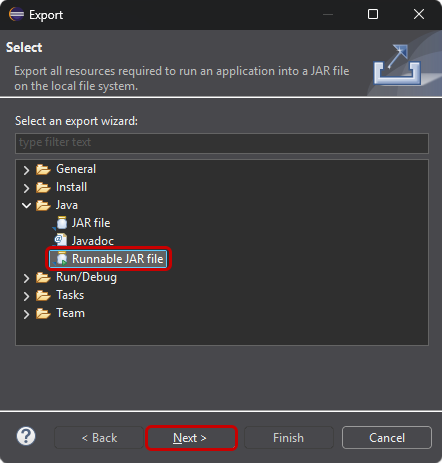 |
| Choose the main class and a destination for the .jar file and click finish. | 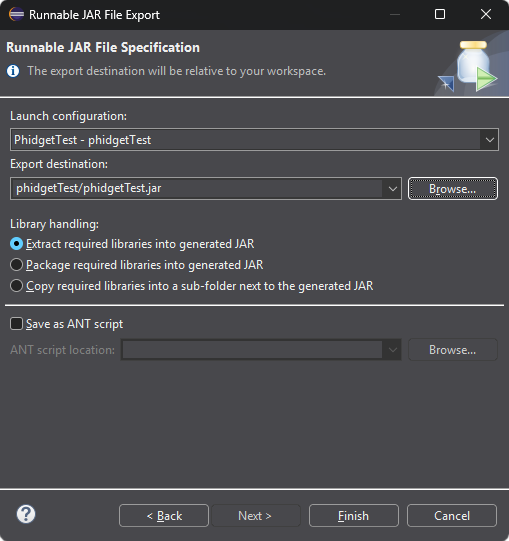 |
You can now run the .jar file from the command prompt with:
java -jar phidgetTest.jar | |
PhidgetSBC Web Interface
Example Code
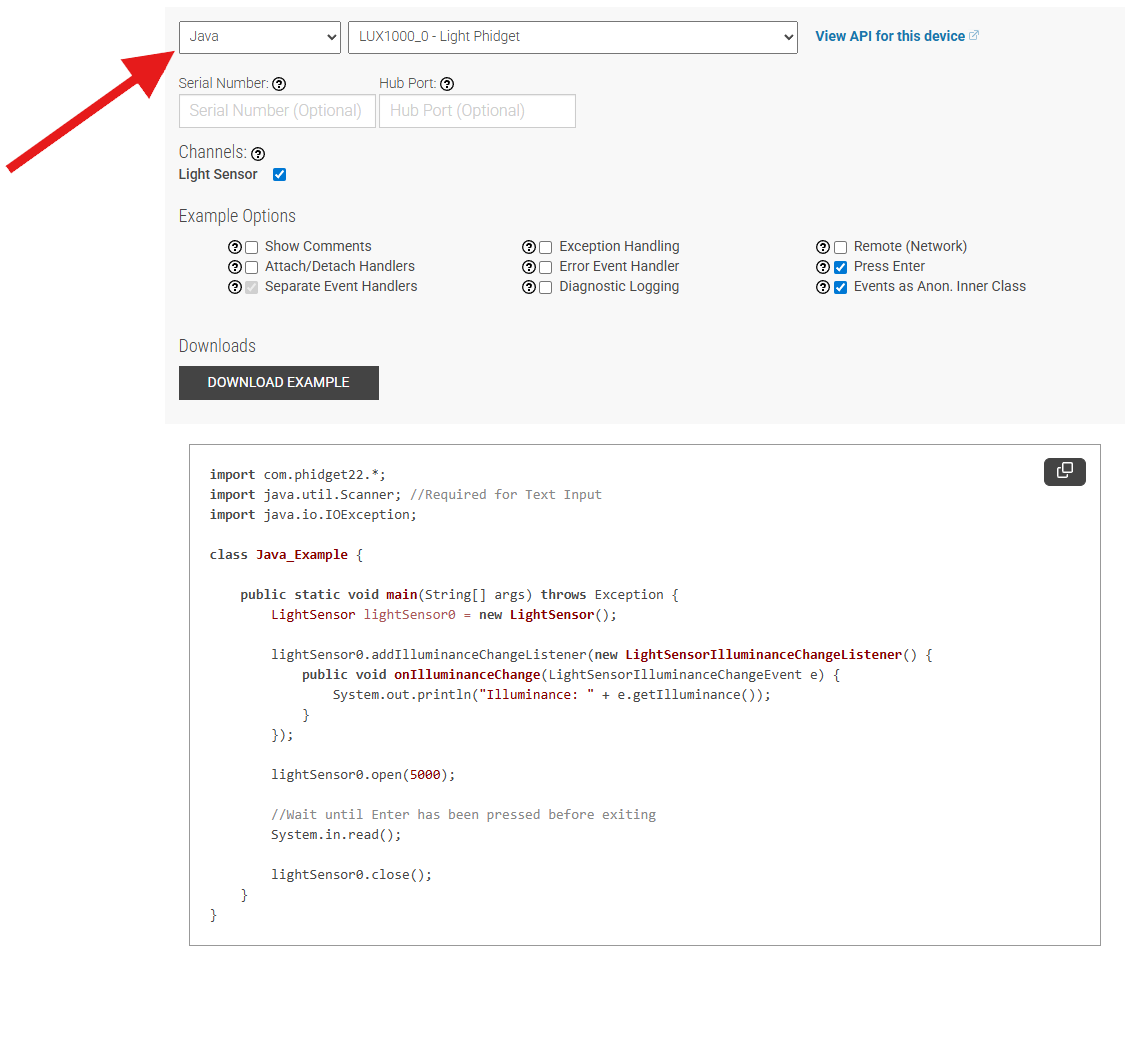
Navigate to our Code Sample Generator to view and download code samples that are tailored to your specific device.
Phidget Programming Basics
To learn more about the structure of the example code, visit our Phidget Programming Basics guide.
API
Deploying Applications
If you're planning to deploy your application, it should be noted that you don't strictly need the Phidget Drivers installed.
At a minimum, these three files are required:
- phidget22.jar
- phidget22.dll
- phidget22java.dll
All three files can be gathered from the installation directory on a computer that has our drivers installed (e.g. C:/Program Files/Phidgets/Phidget22). Java will look for these files in several locations, including the classpath and the working folder of the project.