Language - Swift: Difference between revisions
No edit summary |
No edit summary |
||
| (3 intermediate revisions by 2 users not shown) | |||
| Line 1: | Line 1: | ||
{{#seo:|description=Learn how to use Phidget USB devices with Swift.}} | |||
[[Category:Language]] | [[Category:Language]] | ||
== Get Started == | |||
With the Phidget22 library, it's easy to create Swift applications that work with Phidget devices. | |||
== Swift Library == | |||
===SwiftPM=== | |||
The Swift library for macOS and iOS is available via Swift Package Manager (SwiftPM) here: | |||
<syntaxhighlight>https://www.phidgets.com/git/phidget22-swift.git</syntaxhighlight> | |||
Note that the old CocoaPods release has been discontinued. | |||
====macOS Considerations==== | |||
Legacy Phidgets running a HID USB stack require a driver extension (macOS 10.15 and newer) or a kernel extension (macOS 10.14 and earlier). During development, we recommend downloading the appropriate [https://www.phidgets.com/docs/OS_-_macOS#Quick_Downloads package] which will install the extension. When deploying applications, review the README in the [https://cdn.phidgets.com/downloads/phidget22/libraries/macos/Phidget22_macosdevel.zip macOS Development Files] for information about bundling the extension with your application. | |||
=====Determining USB Stack===== | |||
To determine which USB stack your device is running, navigate to the product page and then to the specification tab, and look for the ''USB Stack'' specification. If you are using a VINT device, navigate to the product page for the VINT Hub you are using. | |||
= | [[Image:Javascript_networkserver_webusb_spec.png|center|600px|link=https://cdn.phidgets.com/docs/images/8/80/Javascript_networkserver_webusb_spec.png]] | ||
== Example Code == | |||
You can find examples for macOS and iOS on our [https://www.phidgets.com/?view=code_samples&lang=Swift Code Samples] page. Make sure you download one for the correct OS. | |||
= | [[Image:swift_example2.png|link=|center|750px]] | ||
== XCode Configuration == | |||
[https://developer.apple.com/xcode/ Xcode] is an IDE provided by Apple that's used to develop code in a wide variety of programming languages, including Swift. | |||
=== | === macOS === | ||
{| style="margin:auto;" class="table-no-border mw-collapsible mw-collapsed" | |||
|+ '''Instructions''' | |||
|colspan="2"|{{hiddenh4|Use Our Examples}}|| | |||
|- | |||
|colspan="2"|Start by downloading a [https://www.phidgets.com/?view=code_samples&lang=Swift Swift example] that will work with your Phidget. | |||
Open the folder and run '''Package.swift''' to open it in Xcode. | |||
|- | |||
| Next, simply press run. ||[[Image:Macos_swift_run2.png|link=https://cdn.phidgets.com/docs/images/b/b9/Macos_swift_run2.png|350px]] | |||
|- | |||
| Here's what the VoltageInput example will look like when it's running. Try playing around with the device and experiment with some of its functionality. The next step is configuring a new project and writing your own code. || [[Image:Macos_swift_output.png|link=https://cdn.phidgets.com/docs/images/0/00/Macos_swift_output.png|350px]] | |||
|- | |||
|colspan="2"|{{hiddenh4|Starting a New Project}} | |||
|- | |||
| Create a new XCode project and select a macOS app. || [[Image:Macos_new_proj.png|link=https://cdn.phidgets.com/docs/images/0/04/Macos_new_proj.png|350px]] | |||
|- | |||
| Name the project, select Swift as the language, and continue. || [[Image:Macos_new_nameproject.png|link=https://cdn.phidgets.com/docs/images/f/fb/Macos_new_nameproject.png|350px]] | |||
|- | |||
| Now that your project is created, you need to add the Phidget libraries. | |||
=== | Go to File > '''Add Package Dependencies''' | ||
|[[Image:Macos_swift_addpackage.png|link=https://cdn.phidgets.com/docs/images/1/13/Macos_swift_addpackage.png|350px]] | |||
|- | |||
| This will pop up the Swift package manager. || [[Image:Macos_swift_packageblank.png|link=https://cdn.phidgets.com/docs/images/3/3f/Macos_swift_packageblank.png|350px]] | |||
|- | |||
|Type this URL into the search bar in the top right: | |||
<syntaxhighlight>https://www.phidgets.com/git/phidget22-swift.git</syntaxhighlight> | |||
Then select the phidget22-swift package and click '''Add Package'''. | |||
| [[Image:Macos_swift_packageurl.png|link=https://cdn.phidgets.com/docs/images/f/ff/Macos_swift_packageurl.png|350px]] | |||
|- | |||
|colspan="2"| Now you can access the Phidget libraries by adding the following line to the top of your files: | |||
<syntaxhighlight>import Phidget22Swift</syntaxhighlight> | |||
The project now has access to Phidgets you can begin coding. See [[Phidget Programming Basics]] for guidance on writing your own code. | |||
|} | |||
{{ | === iOS === | ||
{{ | {| style="margin:auto;" class="table-no-border mw-collapsible mw-collapsed" | ||
|+ '''Instructions''' | |||
|colspan="2"|{{hiddenh4|Use Our Examples}}|| | |||
|- | |||
|colspan="2"|Start by downloading a [https://www.phidgets.com/?view=code_samples&lang=Swift Swift example] that will work with your Phidget. | |||
Open the folder and run '''Package.swift''' to open it in Xcode. | |||
|- | |||
| Next, select the type of device you would like the application to run on, and press play. || [[Image:ios_swift_select_target.png|link=https://cdn.phidgets.com/docs/images/9/90/Ios_swift_select_target.png|350px]] | |||
|- | |||
|Here's what the VoltageInput example will look like when it's running. Try playing around with the device and experiment with some of its functionality. The next step is starting a new project and writing your own code.|| [[Image:ios_swift_output.png|link=https://cdn.phidgets.com/docs/images/1/1d/Ios_swift_output.png|200px]] | |||
|- | |||
|colspan="2"|{{hiddenh4|Starting a New Project}} | |||
|- | |||
| Create a new XCode project and select an iOS app. || [[Image:ios_new_proj.png|link=https://cdn.phidgets.com/docs/images/d/d9/Ios_new_proj.png|350px]] | |||
|- | |||
| Name the project, select Swift as the language, and choose which devices will be supported. || [[Image:ios_new_nameproject.png|link=https://cdn.phidgets.com/docs/images/8/86/Ios_new_nameproject.png|350px]] | |||
|- | |||
| Now that your project is created, you need to add the Phidget libraries. | |||
Go to '''File > Add Package Dependencies''' | |||
| |[[Image:Macos_swift_addpackage.png|link=https://cdn.phidgets.com/docs/images/1/13/Macos_swift_addpackage.png|350px]] | |||
|- | |||
| This will pop up the Swift package manager. || [[Image:Macos_swift_packageblank.png|link=https://cdn.phidgets.com/docs/images/3/3f/Macos_swift_packageblank.png|350px]] | |||
|- | |||
|Type this URL into the search bar in the top right: | |||
<syntaxhighlight>https://www.phidgets.com/git/phidget22-swift.git</syntaxhighlight> | |||
Then select the phidget22-swift package and click '''Add Package'''. | |||
| [[Image:Macos_swift_packageurl.png|link=https://cdn.phidgets.com/docs/images/f/ff/Macos_swift_packageurl.png|350px]] | |||
|- | |||
|colspan="2"| Now you can access the Phidget libraries by adding the following line to the top of your files: | |||
<syntaxhighlight>import Phidget22Swift</syntaxhighlight> | |||
The project now has access to Phidgets you can begin coding. See [[Phidget Programming Basics]] for guidance on writing your own code. | |||
|} | |||
==Phidget Programming Basics== | |||
{{PhidgetProgrammingBasicsLink}} | |||
==API== | |||
[{{SERVER}}/?view=api&lang=Swift Phidget22 API] | |||
Latest revision as of 17:34, 10 June 2026
Get Started
With the Phidget22 library, it's easy to create Swift applications that work with Phidget devices.
Swift Library
SwiftPM
The Swift library for macOS and iOS is available via Swift Package Manager (SwiftPM) here:
https://www.phidgets.com/git/phidget22-swift.gitNote that the old CocoaPods release has been discontinued.
macOS Considerations
Legacy Phidgets running a HID USB stack require a driver extension (macOS 10.15 and newer) or a kernel extension (macOS 10.14 and earlier). During development, we recommend downloading the appropriate package which will install the extension. When deploying applications, review the README in the macOS Development Files for information about bundling the extension with your application.
Determining USB Stack
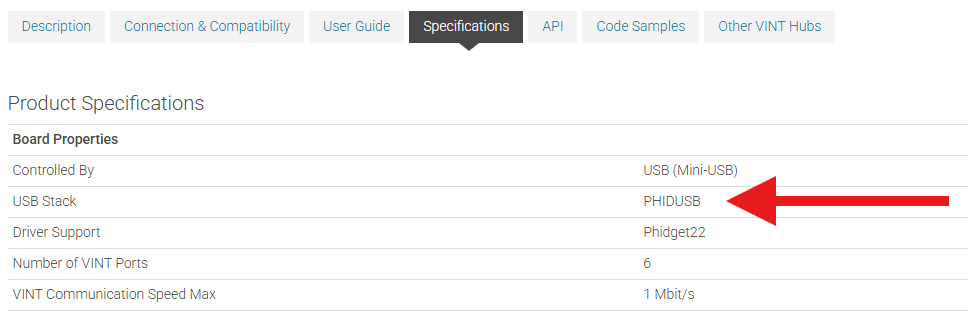
To determine which USB stack your device is running, navigate to the product page and then to the specification tab, and look for the USB Stack specification. If you are using a VINT device, navigate to the product page for the VINT Hub you are using.
Example Code
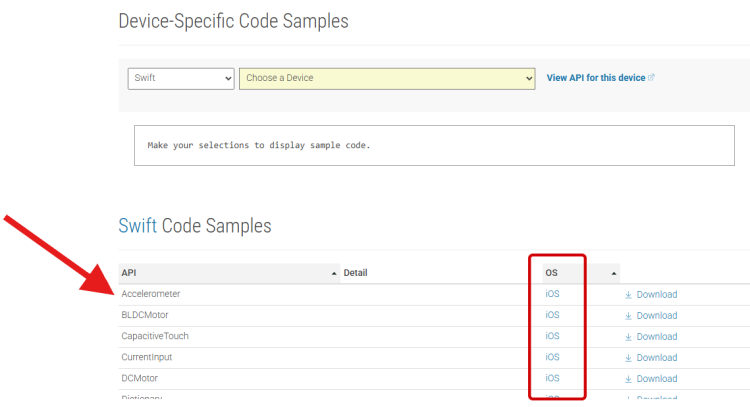
You can find examples for macOS and iOS on our Code Samples page. Make sure you download one for the correct OS.
XCode Configuration
Xcode is an IDE provided by Apple that's used to develop code in a wide variety of programming languages, including Swift.
macOS
Use Our Examples |
||
| Start by downloading a Swift example that will work with your Phidget.
Open the folder and run Package.swift to open it in Xcode. | ||
| Next, simply press run. | 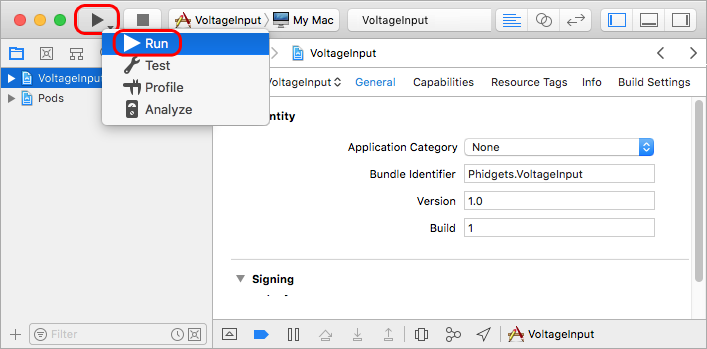
| |
| Here's what the VoltageInput example will look like when it's running. Try playing around with the device and experiment with some of its functionality. The next step is configuring a new project and writing your own code. | 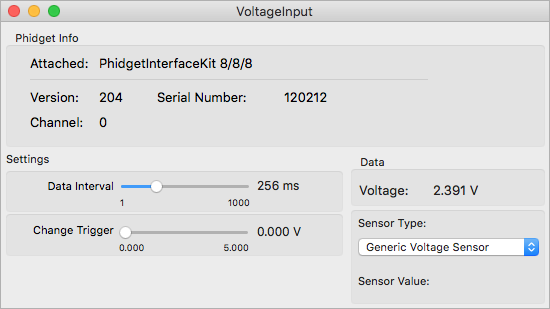
| |
Starting a New Project
| ||
| Create a new XCode project and select a macOS app. | 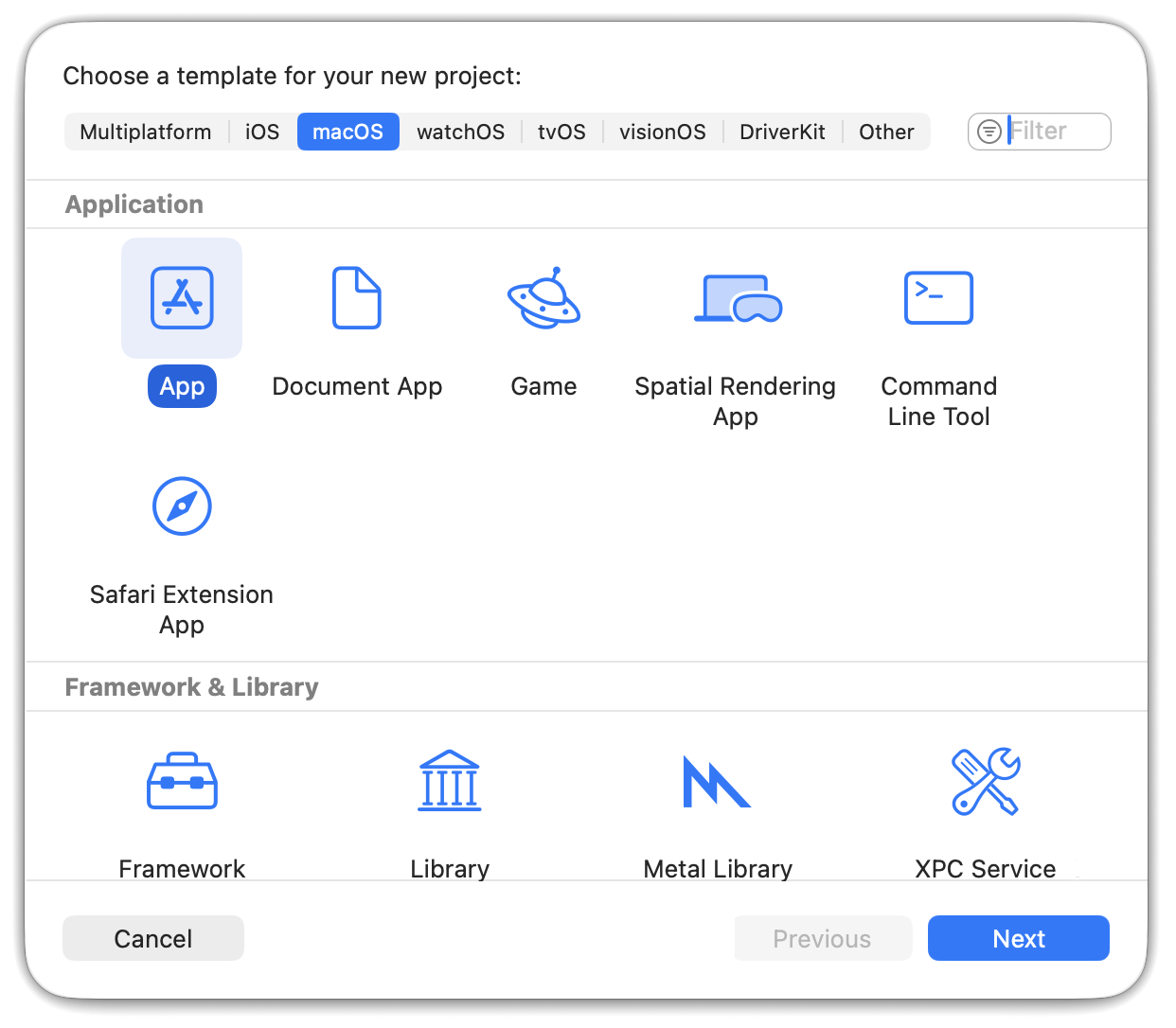
| |
| Name the project, select Swift as the language, and continue. | 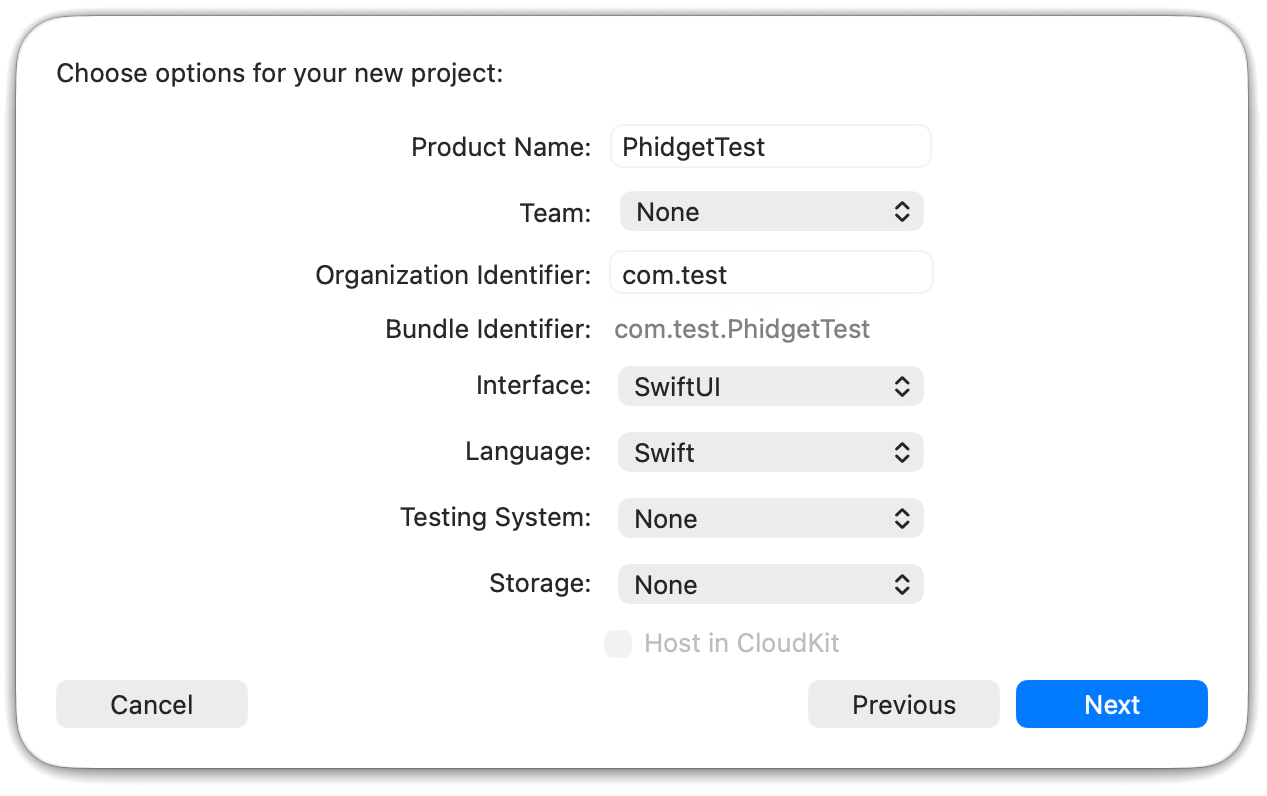
| |
| Now that your project is created, you need to add the Phidget libraries.
Go to File > Add Package Dependencies |
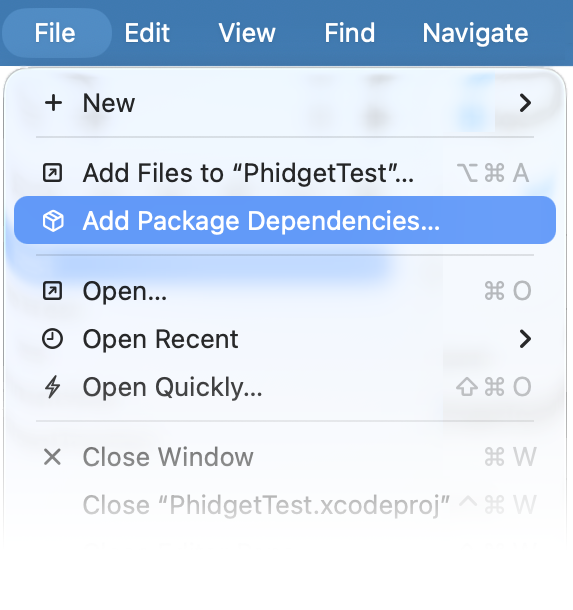
| |
| This will pop up the Swift package manager. | 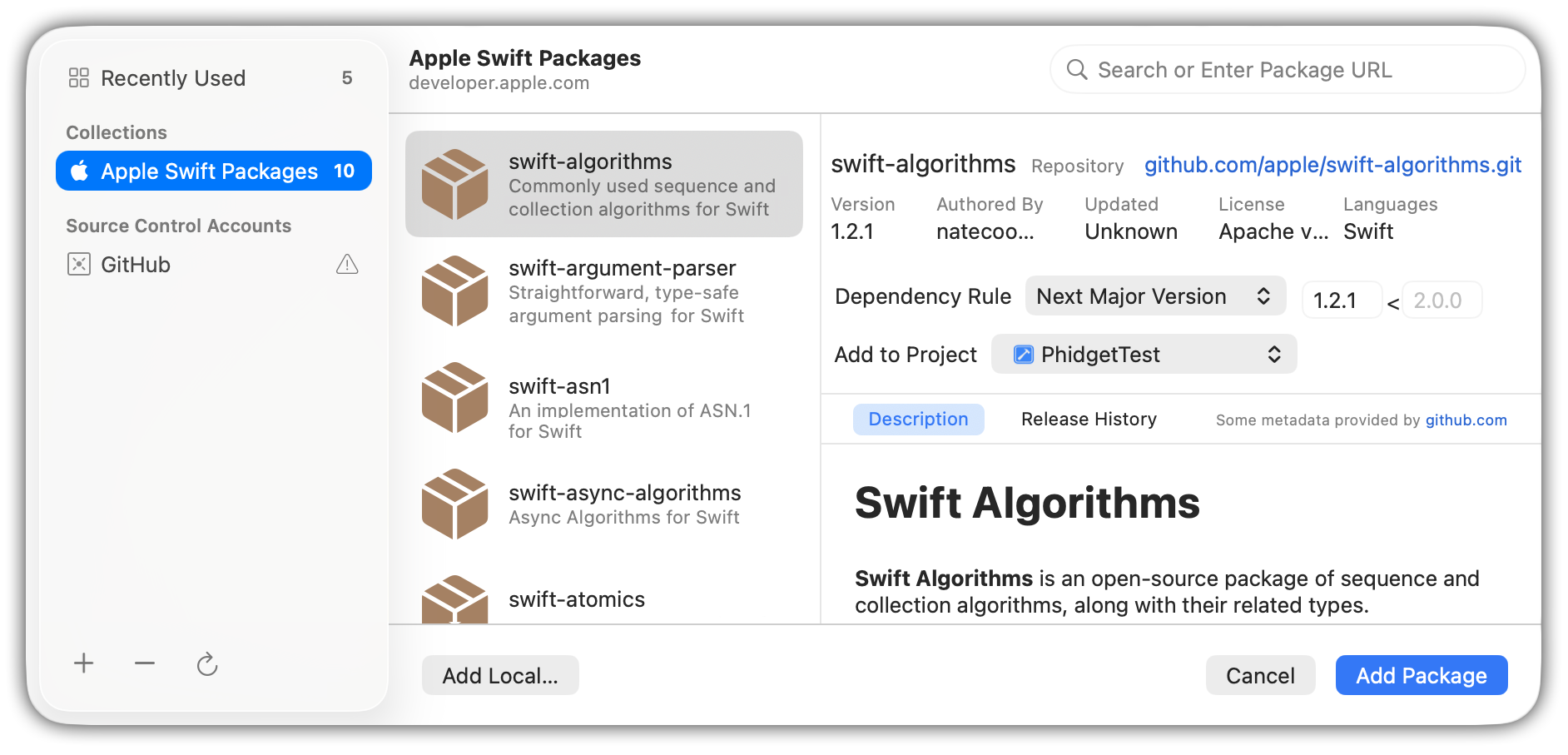
| |
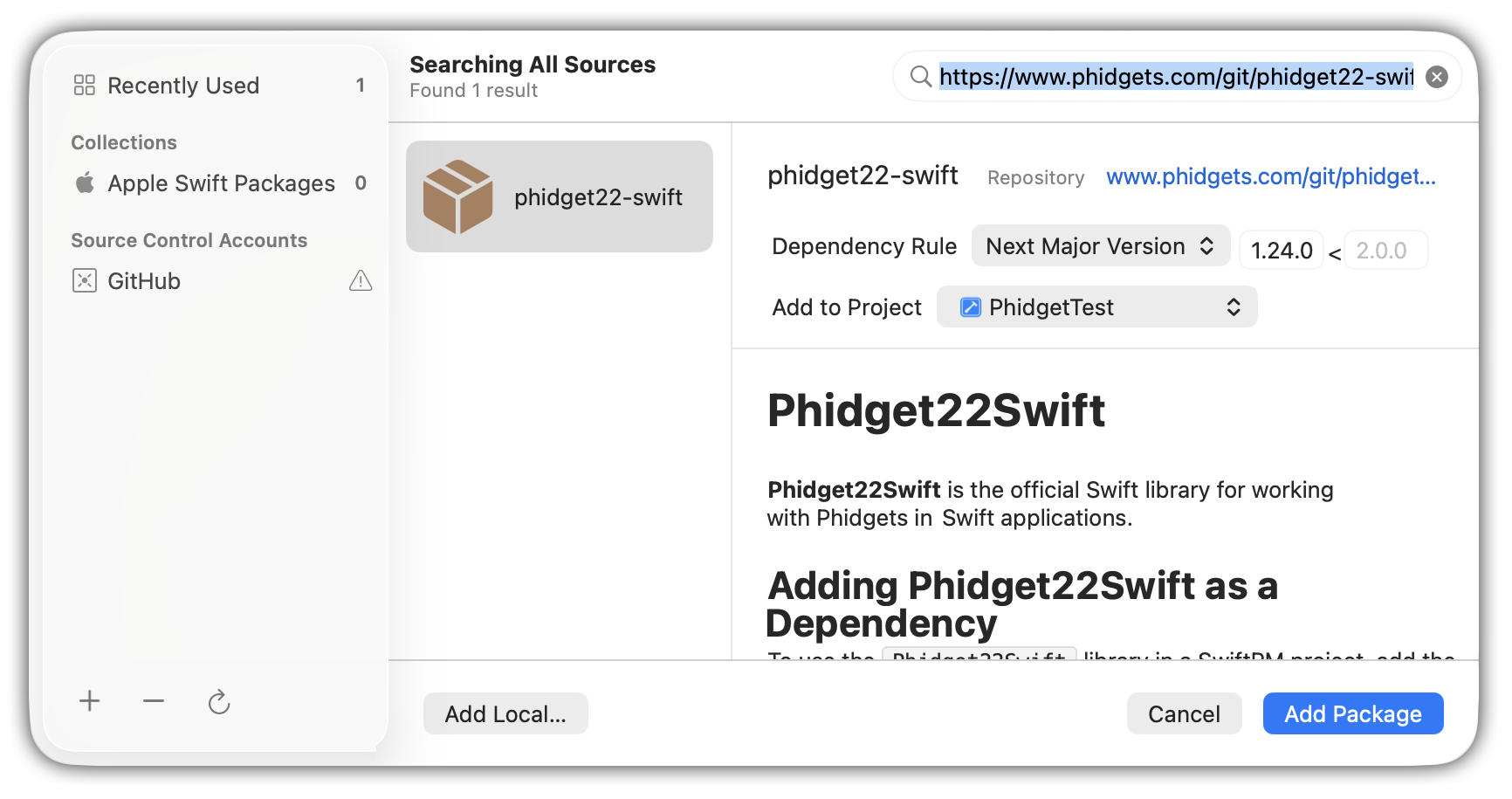
Type this URL into the search bar in the top right:
https://www.phidgets.com/git/phidget22-swift.gitThen select the phidget22-swift package and click Add Package. |
| |
Now you can access the Phidget libraries by adding the following line to the top of your files:
import Phidget22SwiftThe project now has access to Phidgets you can begin coding. See Phidget Programming Basics for guidance on writing your own code. | ||
iOS
Use Our Examples |
||
| Start by downloading a Swift example that will work with your Phidget.
Open the folder and run Package.swift to open it in Xcode. | ||
| Next, select the type of device you would like the application to run on, and press play. | 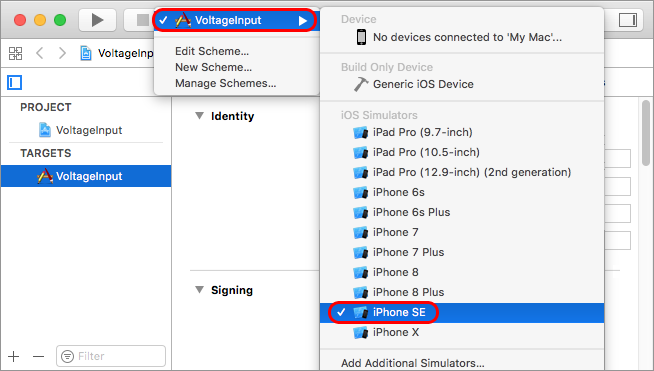
| |
| Here's what the VoltageInput example will look like when it's running. Try playing around with the device and experiment with some of its functionality. The next step is starting a new project and writing your own code. | 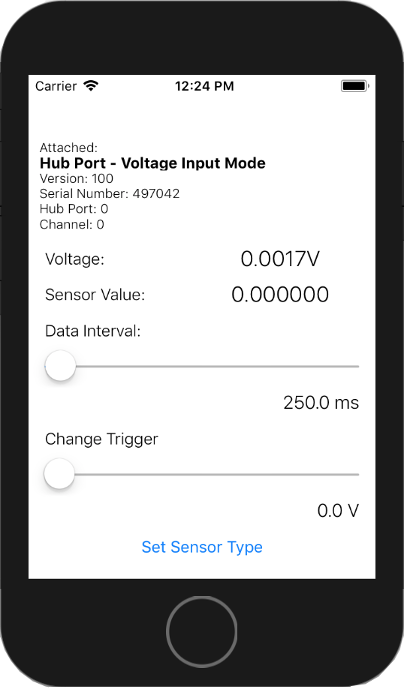
| |
Starting a New Project
| ||
| Create a new XCode project and select an iOS app. | 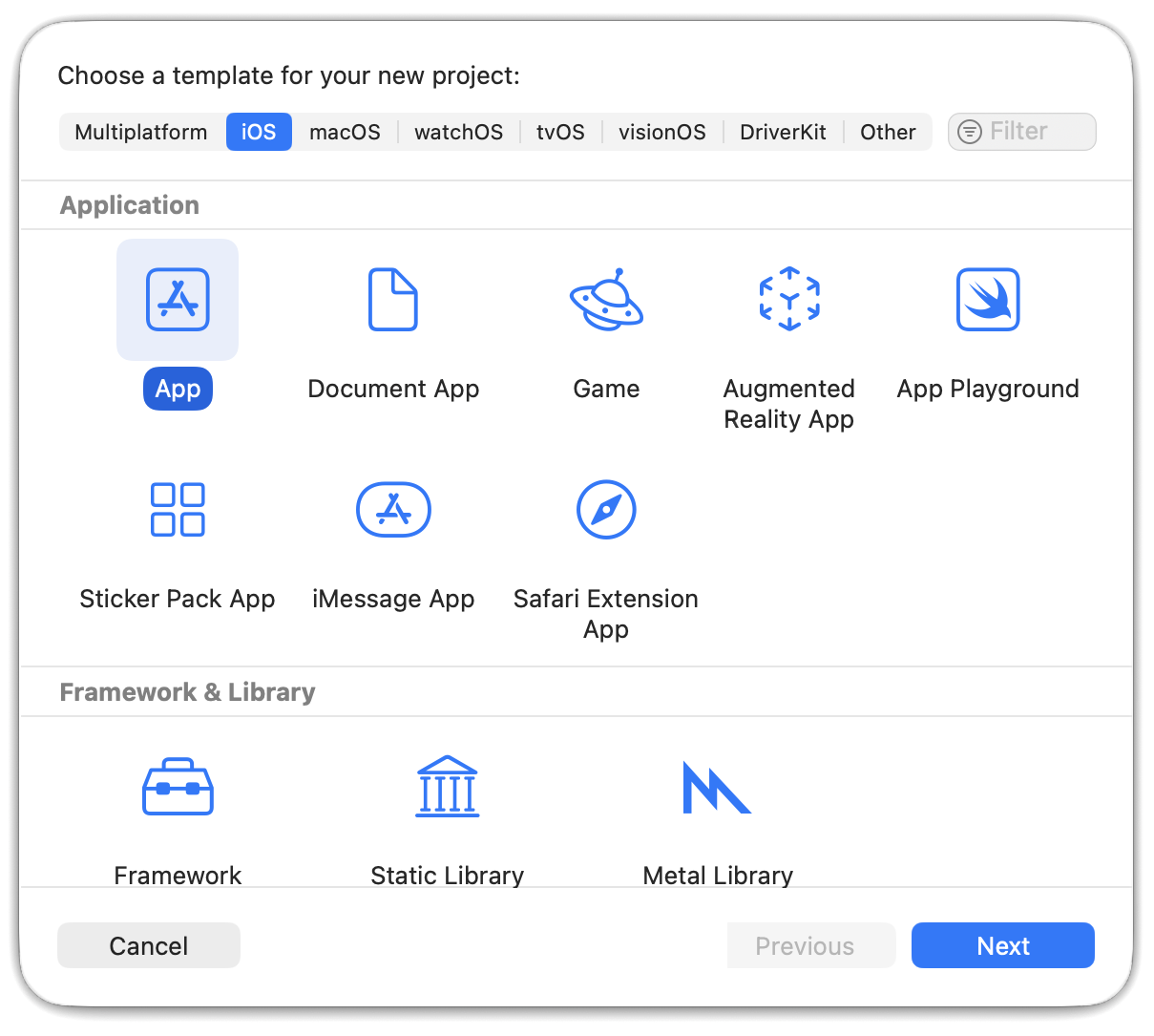
| |
| Name the project, select Swift as the language, and choose which devices will be supported. | 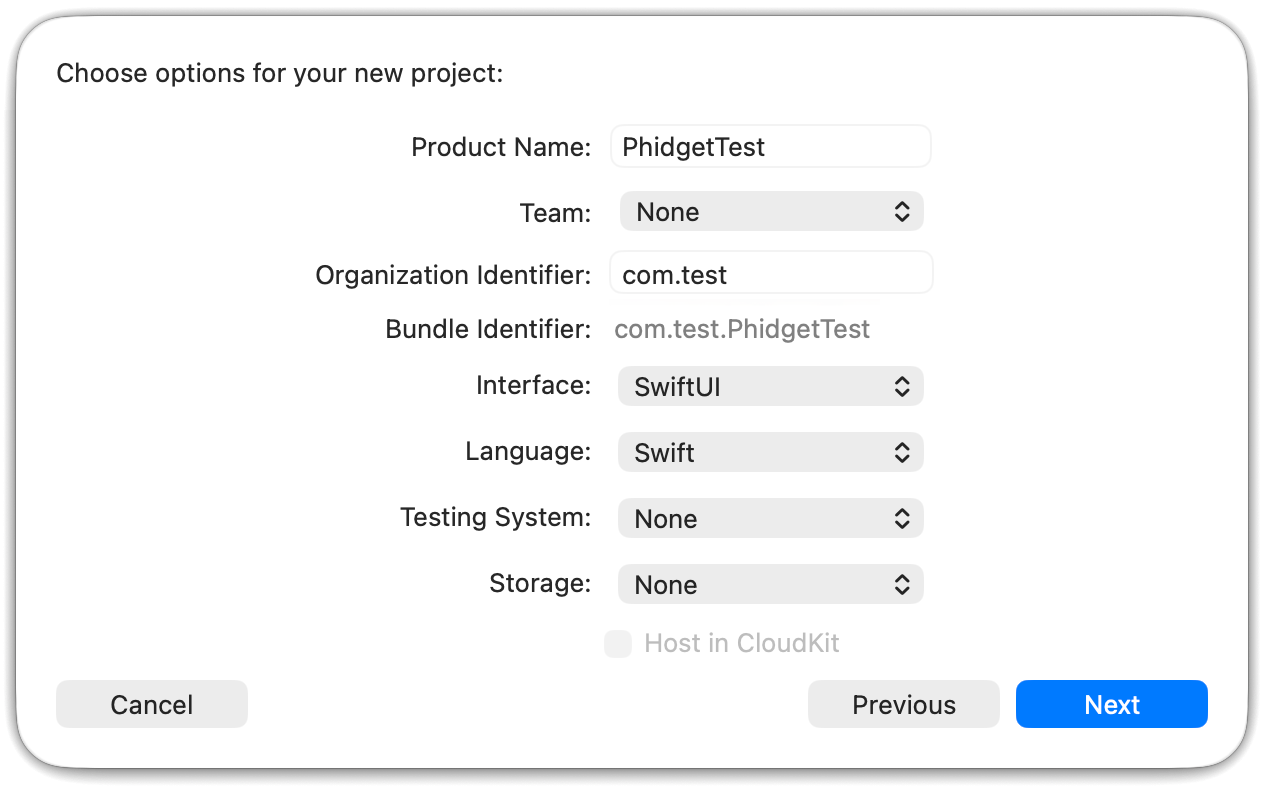
| |
| Now that your project is created, you need to add the Phidget libraries.
Go to File > Add Package Dependencies |
| |
| This will pop up the Swift package manager. |
| |
Type this URL into the search bar in the top right:
https://www.phidgets.com/git/phidget22-swift.gitThen select the phidget22-swift package and click Add Package. |
| |
Now you can access the Phidget libraries by adding the following line to the top of your files:
import Phidget22SwiftThe project now has access to Phidgets you can begin coding. See Phidget Programming Basics for guidance on writing your own code. | ||
Phidget Programming Basics
To learn more about the structure of the example code, visit our Phidget Programming Basics guide.