ADP0002 Quick Start Guide: Difference between revisions
(Created page with "__NOINDEX__ __NOTOC__ {{#seo:|description=Get started with your I2C Adapter Phidget}} ==Part 1: Setup== {{PT1 Deck Sequence}} ==Part 2: Using Your Phidget== ===Connections Overview=== 600px|link=|center {| | '''USB/VINT Port''' || This device can be controlled directly via USB, or through a [https://www.phidgets.com/?tier=2&catid=64&pcid=57 VINT Hub Phidget]. |- | '''VCC''' || Power terminal to supply your attached SPI device. Use the {{co...") |
No edit summary |
||
| Line 39: | Line 39: | ||
{{UGC-Entry|Data Adapter|| | {{UGC-Entry|Data Adapter|| | ||
===Data Adapter=== | ===Data Adapter=== | ||
[[Image:ADP0002_ControlPanel_DataAdapterExample.png|link=https:// | [[Image:ADP0002_ControlPanel_DataAdapterExample.png|link=https://cdn.phidgets.com/docs/images/d/d2/ADP0002_ControlPanel_DataAdapterExample.png|thumb|500px|<center>''Data Adapter application - Phidget Control Panel (Windows)''</center>]] | ||
* The supply voltage and communication frequency can be configured. | * The supply voltage and communication frequency can be configured. | ||
* Set the Chip Select polarity and SPI mode according to your SPI device's datasheet. | * Set the Chip Select polarity and SPI mode according to your SPI device's datasheet. | ||
| Line 45: | Line 45: | ||
{{UGC-Entry|Digital Input|| | {{UGC-Entry|Digital Input|| | ||
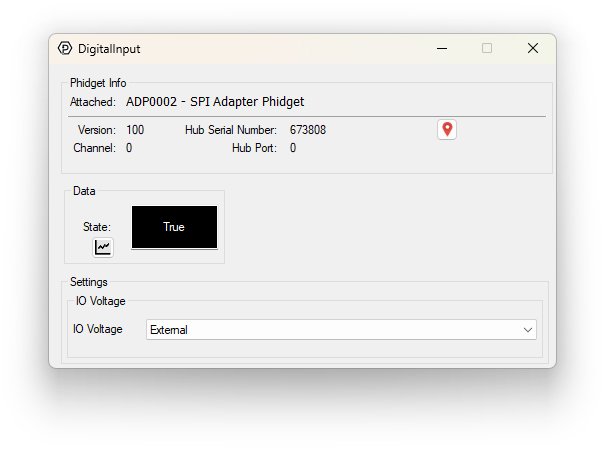
[[Image:ADP0002_ControlPanel_DigitalInputExample.png|link=https:// | [[Image:ADP0002_ControlPanel_DigitalInputExample.png|link=https://cdn.phidgets.com/docs/images/a/a7/ADP0002_ControlPanel_DigitalInputExample.png|thumb|500px|<center>''Digital Input application - Phidget Control Panel (Windows)''</center>]] | ||
===Digital Input=== | ===Digital Input=== | ||
* You can open each GPIO as either an input or an output. | * You can open each GPIO as either an input or an output. | ||
| Line 52: | Line 52: | ||
{{UGC-Entry|Digital Output|| | {{UGC-Entry|Digital Output|| | ||
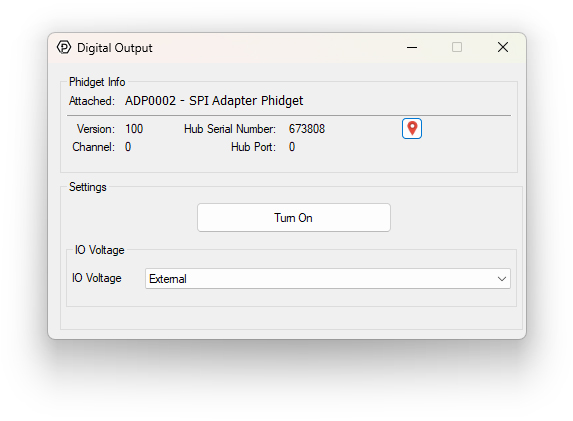
[[Image:ADP0002_ControlPanel_DigitalOutputExample.png|link=https:// | [[Image:ADP0002_ControlPanel_DigitalOutputExample.png|link=https://cdn.phidgets.com/docs/images/a/af/ADP0002_ControlPanel_DigitalOutputExample.png|thumb|500px||<center>''Digital Output application - Phidget Control Panel (Windows)''</center>]] | ||
===Digital Output=== | ===Digital Output=== | ||
* You can open each GPIO as either an input or an output. | * You can open each GPIO as either an input or an output. | ||
Latest revision as of 20:48, 27 January 2026
Part 1: Setup
Part 2: Using Your Phidget
Connections Overview
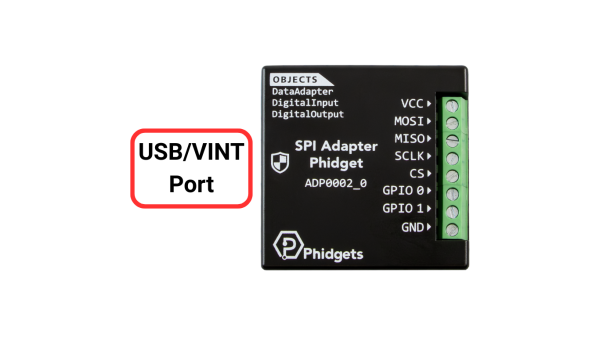
| USB/VINT Port | This device can be controlled directly via USB, or through a VINT Hub Phidget. |
| VCC | Power terminal to supply your attached SPI device. Use the DataAdapterVoltage property to select the appropriate voltage, or use external mode if there's already an outside power source for the device.
|
| MOSI | Connect this terminal to the MOSI (sometimes called SDI) pin on the SPI device. |
| MISO | Connect this terminal to the MISO (sometimes called SDO) pin on the SPI device. |
| SCLK | Connect this terminal to the SCLK (sometimes called CLK) pin on the SPI device. |
| CS | The chip select terminal. This controls which SPI device the SPI Adapter Phidget is communicating with. Additional chip select signals can be added using the two GPIO terminals. |
| GPIO 1/GPIO 2 | Two general-purpose input/output pins to help you communicate with devices that have additional controls or output signals. |
| GND | Ground terminal. |
Phidget Control Panel
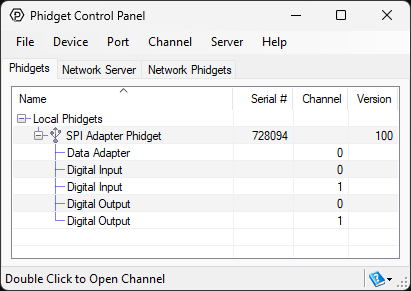
Use the Phidget Control Panel to explore your device's functionality. Each channel is described below.
Data Adapter
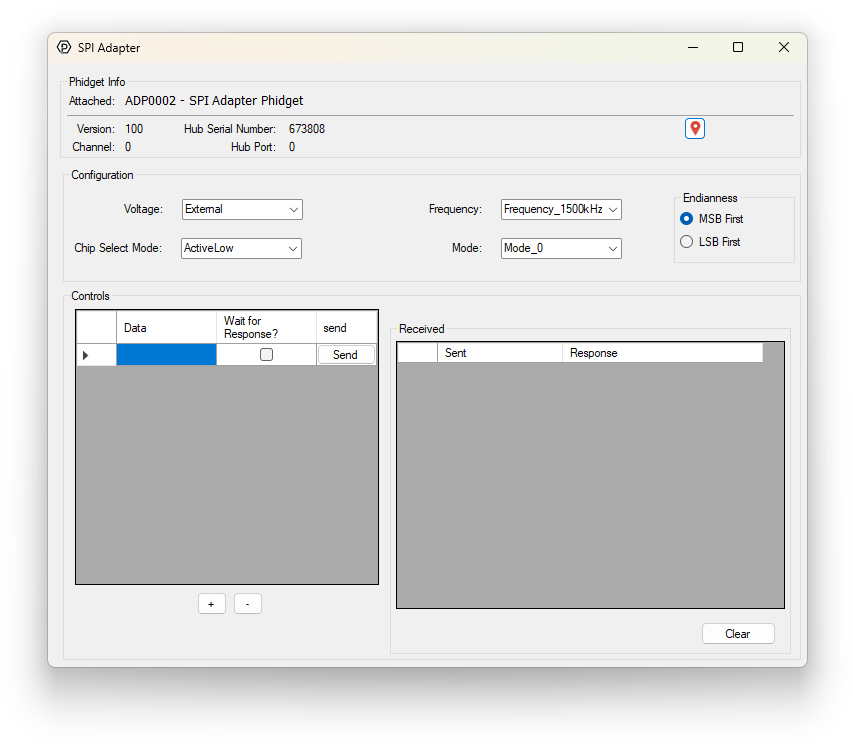
- The supply voltage and communication frequency can be configured.
- Set the Chip Select polarity and SPI mode according to your SPI device's datasheet.
Digital Input
- You can open each GPIO as either an input or an output.
- The state of the input is shown in the data section.
Part 3: Create your Program
Part 4: Other Considerations
Firmware Upgrade
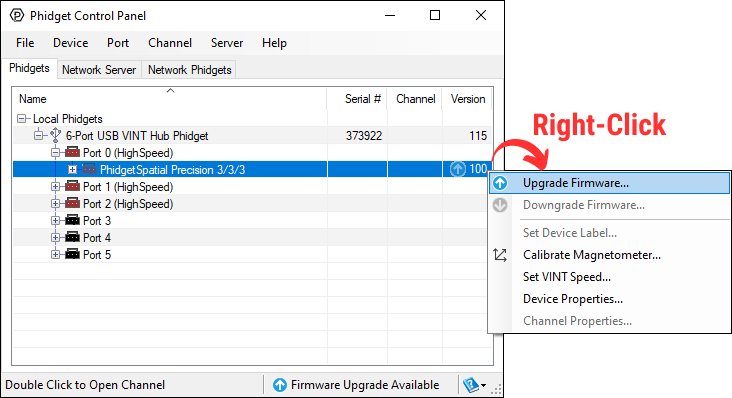
MacOS users can upgrade device firmware by double-clicking the device row in the Phidget Control Panel.
Linux users can upgrade via the phidget22admin tool (see included readme for instructions).
Windows users can upgrade the firmware for this device using the Phidget Control Panel as shown below.
Firmware Downgrade
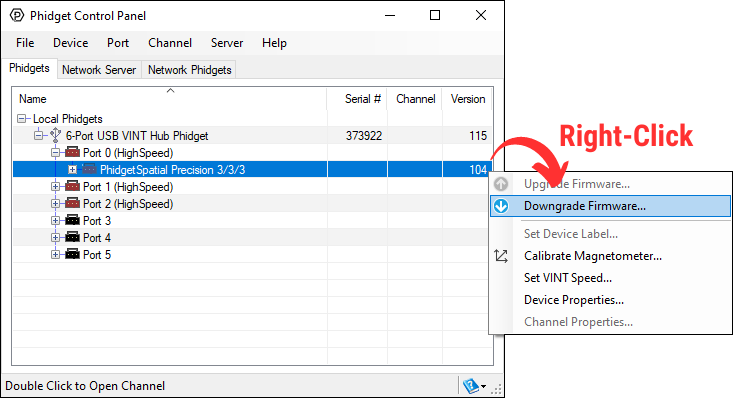
Firmware upgrades include important bug fixes and performance improvements, but there are some situations where you may want to revert to an old version of the firmware (for instance, when an application you're using is compiled using an older version of phidget22 that doesn't recognize the new firmware).
MacOS and Linux users can downgrade using the phidget22admin tool in the terminal (see included readme for instructions).
Windows users can downgrade directly from the Phidget Control Panel if they have driver version 1.9.20220112 or newer:
Firmware Version Numbering Schema
Phidgets device firmware is represented by a 3-digit number. For firmware patch notes, see the device history section on the Specifications tab on your device's product page.
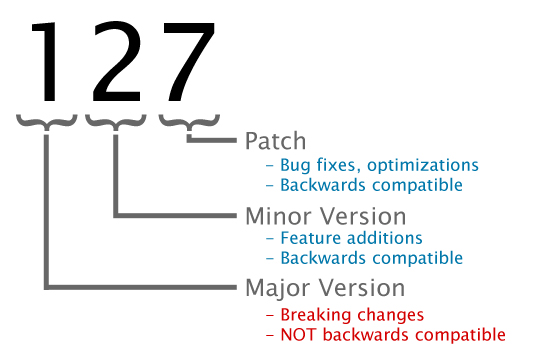
- If the digit in the 'ones' spot changes, it means there have been bug fixes or optimizations. Sometimes these changes can drastically improve the performance of the device, so you should still upgrade whenever possible. These upgrades are backwards compatible, meaning you can still use this Phidget on a computer that has Phidget22 drivers from before this firmware upgrade was released.
- If the digit in the 'tens' spot changes, it means some features were added (e.g. new API commands or events). These upgrades are also backwards compatible, in the sense that computers running old Phidget22 drivers will still be able to use the device, but they will not be able to use any of the new features this version added.
- If the digit in the 'hundreds' spot changes, it means a major change has occurred (e.g. a complete rewrite of the firmware or moving to a new architecture). These changes are not backwards compatible, so if you try to use the upgraded board on a computer with old Phidget22 drivers, it will show up as unsupported in the Control Panel and any applications build using the old libraries won't recognize it either. Sometimes, when a Phidget has a new hardware revision (e.g. 1018_2 -> 1018_3), the firmware version's hundreds digit will change because entirely new firmware was needed (usually because a change in the processor). In this case, older hardware revisions won't be able to be upgraded to the higher version number and instead continue to get bug fixes within the same major revision.