Language - Max: Difference between revisions
No edit summary |
|||
| (62 intermediate revisions by 5 users not shown) | |||
| Line 1: | Line 1: | ||
{{#seo:|description=Learn how to use Phidget USB devices with Max.}} | |||
[[Category:Language]] | [[Category:Language]] | ||
== | ==Get Started== | ||
With the Phidgets Max library, it's easy to create Max patches that work with Phidget devices. | |||
==System Libraries== | |||
Max requires the phidget libraries to be installed on your system: | |||
* [https://cdn.phidgets.com/downloads/phidget22/libraries/macos/Phidget22.dmg Installer Download (macOS)] | |||
*[https://cdn.phidgets.com/downloads/phidget22/libraries/windows/Phidget22-x64.exe Installer Download (Windows 64-bit)] | |||
*[https://cdn.phidgets.com/downloads/phidget22/libraries/windows/Phidget22-ARM64.exe Installer Download (Windows ARM64)] | |||
==Max Libraries== | |||
To develop on Max with Phidgets, download the Max externals: | |||
* [https://www.phidgets.com/downloads/phidget22/libraries/windows/Phidget22MaxMSP.zip Max externals for Windows] | |||
* [https://www.phidgets.com/downloads/phidget22/libraries/macos/Phidget22MaxMSP.zip Max externals for macOS] | |||
Unpack the zip file and copy the appropriate folder: | |||
* For 32-bit Max on Windows, copy the '''x86''' folder. | |||
* For 64-bit Max on Windows, copy the '''x64''' folder. | |||
* | * For macOS, copy the '''externals''' folder. | ||
The folder you copied needs to be placed in a specific location for Max to reference it. Open Max and navigate to '''Options -> File Preferences'''. | |||
[[Image:Max_filepreferences2.png|link=|center]] | |||
The folder that you copied earlier needs to be placed in any of the locations listed in File Preferences. Navigate to one of the locations and paste the folder: | |||
[[Image:Max_folder2.PNG|link=|center]] | |||
The Phidget Max library can now be referenced. | |||
=== | ==Development Environment Configuration== | ||
===Using Our Examples=== | |||
{| style="margin:auto;" class="table-no-border mw-collapsible mw-collapsed" | |||
|+ '''Instructions''' | |||
|- | |||
| Navigate to the '''examples''' folder located within the Phidget22MaxMSP folder you previously unpacked: ||[[Image:Max_examples.PNG|link=https://cdn.phidgets.com/docs/images/a/a0/Max_examples.PNG|350px]] | |||
|- | |||
|From here, select an example that will work with your Phidget and open it in Max. You can run the example by simply pressing the '''start''' button.<br/><br/>The example is now running. Play around with the device and experiment with some of the functionality. When you are ready, the next step is configuring your project and writing your own code! || [[Image:Max_run2.png|link=https://cdn.phidgets.com/docs/images/f/f8/Max_run2.png|350px]] | |||
|- | |||
|} | |||
=== Writing your own Code === | |||
{| style="margin:auto;" class="table-no-border mw-collapsible mw-collapsed" | |||
|+ '''Instructions''' | |||
|- | |||
|colspan="2"| You should now have working examples and a project that is configured. This teaching section will help you understand how the examples were written so you can start writing your own code.<br/>Your main reference for writing Max code will be:<br/><br/> | |||
* The [https://www.phidgets.com/?view=api Phidget22 API] Manual | |||
* The Max [https://www.phidgets.com/?view=code_samples&lang=MaxMSP examples] | |||
|- | |||
| First, let's explain how to operate the examples. We will take a look at the PhidgetVoltageInput example:<br/><br/>For this particular example, the Max object is called '''PhidgetVoltageInput'''. Objects/message boxes are connected to the inputs and outputs of this object. Input objects will either cause a property of the device to change or request for a property to be retrieved. Output objects return the retrieved information.<br/><br/>All supported functions for Max can be found in the [https://www.phidgets.com/?view=api Phidget22 API].||[[File:MSP_Example2.png|link=https://cdn.phidgets.com/docs/images/f/f9/MSP_Example2.png|350px]] | |||
|- | |||
|You can click on the '''getDeviceSerialNumber''' message box to request the Phidget to retrieve the serial number of the device.||[[File:MaxMSP_GetSerial.png|link=]][[File:MaxMSP_GetVoltage.png|link=]] | |||
|- | |||
|colspan="2"|If your example contains a '''get[DataType]''' message box (e.g. '''getVoltage'''), click on it to cause the associated data to be output with a relevant prefix. | |||
|- | |||
|colspan="2"|If your example contains '''start''' and '''stop''' message boxes, you can use them to turn on continuous polling for events. <br/><br/>For the PhidgetDigitalOutput example, there are '''setDutyCycle''' and '''setState''' message boxes that control the output. | |||
|- | |||
|colspan="2"|Your best resource to program in Max will be our examples. If you aren't familiar with concepts in Phidget programming, see the [https://www.phidgets.com/docs/Phidget_Programming_Basics Phidget Programming Basics]. | |||
|- | |||
|colspan="2"|{{hiddenh4|Step One: Initialize and Open}} | |||
|- | |||
|Initializing and opening the device is done by placing a new object. Other objects handle different Phidgets - a Spatial, a Light Sensor, a Motor Controller, etc. Only the name of the object changes. You can find the name for the object in the device's .maxhelp file (e.g. VoltageInput.maxhelp). If you are unsure what the software object for your device is, go to the '''API''' tab on its product page on our website. In the case of a Voltage Input, we name it '''PhidgetVoltageInput'''.<br/><br/>'''Important:''' a local connection will reserve the device until closed. This prevents any other instances from retrieving data from the Phidget, including other programs. Every Phidget object in Max will automatically try to connect to and reserve a Phidget for itself. As long as a Max Phidget object is running, it will continuously try to connect to a Phidget, even trying to reconnect if it gets disconnected.||[[File:MaxMSP_VoltageInput_generic.png|link=]][[File:MaxMSP_GetVoltage.png|link=]] | |||
|- | |||
|colspan="2"|{{hiddenh4|Specifying a Phidget}} | |||
|- | |||
|colspan="2"|When the instance is created as with the Voltage Input above, normally it will make a connection to the first device of its type it can find. The Phidget object can also be declared with a number of specifiers to open a specific Phidget instead. | |||
Specifiers can be added to the object in the format: '''PhidgetExternal {Specifiers}''' | |||
These will be written in the form: '''specifier=value''' | |||
Available specifiers include: | |||
* '''serialnumber''' - The serial number of the device | |||
* '''channel''' - The channel of the device to open | |||
* '''hubport''' - The hub port the device is plugged into (where applicable) | |||
* '''ishubport''' - Should this channel be opened on a hub port directly, or on a connected VINT device (default) | |||
* '''remote''' - Forces connection to a remote device over a network, ignoring devices on the local machine | |||
* '''local''' - Forces connection to a device plugged into the local machine, ignoring network devices | |||
|- | |||
| '''Example:''' Opening a VoltageInput with serial number 349428. ||[[File:MaxMSP_VoltageInput_specific.png|link=]] | |||
|- | |||
|colspan="2"|Here are some other examples: | |||
*Open a Digital Input: | |||
<syntaxhighlight>PhidgetDigitalInput</syntaxhighlight> | |||
*Open channel 1 of a Digital Input Phidget connected to port 2 of a hub with serial number 35569 | |||
<syntaxhighlight>PhidgetDigitalInput serialnumber=35569 channel=1 hubport=2</syntaxhighlight> | |||
*Open open hub port 2 as a DigitalInput for a hub with serial number 35569 | |||
<syntaxhighlight>PhidgetDigitalInput serialnumber=35569 hubport=2 ishubport=1</syntaxhighlight> | |||
|- | |||
|colspan="2"|{{hiddenh4|Using a Phidget Over a Network}} | |||
|- | |||
|To use the Network Server, first the Phidget needs to be plugged in to a computer that has the Network Server turned on within your local network (For information, see the [[Phidget Network Server]] page). Add a '''PhidgetNet''' object and send the message:'''enableServerDiscovery'''<br/>Then configure the object to connect to a remote server.||[[File:MaxMSP_Enable_Server_Discovery.png|link=]][[File:MaxMSP_Remote.png|link=]] | |||
|- | |||
|colspan="2"|{{hiddenh4|Step Two: Wait for Attachment}} | |||
|- | |||
|colspan="2"|In Max you do not need a specific '''waitForAttachment''' block. However, if your Phidget is not responding, ensure it is plugged in. Send a '''getAttached''' message to check. | |||
|- | |||
|colspan="2"|{{hiddenh4|Step Three: Do Things with the Phidget}} | |||
|- | |||
|Getting or setting values is done through messages linked to the inlet.<br/>Use '''set''' messages to change values and '''get''' messages to read them.</br>Use '''start''' and '''stop''' to control continuous sampling.||[[File:MaxMSP_get_and_set.png|link=]][[File:MaxMSP_Start_Stop.png|link=]] | |||
|- | |||
|colspan="2"|Phidget data is accessed either by one-time polling or at a fixed rate via on-board timers for some devices.<br/><br/>Getting or setting values directly via polling on the Phidget is done through messages linked to the inlet. The object’s inlet can be wired to send commands to the device, and the outlet used to retrieve the results. You can set values on the Phidget by using the set messages, and some properties can be read with get messages.<br/><br/>To sample at a fixed rate, use the start and stop messages to start and stop the data flow, respectively. | |||
|- | |||
|Outlet data is always given a prefix to allow for routing. For instance, the digital input state state change event data is given the prefix stateChange, and the voltage input voltage change event similarly use voltageChange. The specific prefixes for each set of outlet data is listed on the API page for that class.<br/><br/>The rightmost outlet on the Phidget object outputs error event data. This will send information on error events such as saturation events. To see which error events may apply to your device, check its API page.||[[File:MaxMSP_Routing.png|link=]][[File:MaxMSP_Error_Event.png|link=]] | |||
|- | |||
|colspan="2"|{{hiddenh4|Step Four: Close and Delete}} | |||
|- | |||
|colspan="2"|In Max you do not need a specific close/delete block. | |||
|- | |||
|colspan="2"|{{hiddenh4|Special Case: Multiple Phidgets}} | |||
|- | |||
|colspan="2"|Multiple Phidgets can be used in a single program by adding additional objects.<br/>If using multiple devices of the same type, specify the '''serial number''' and '''channel''' to ensure the correct device is used. | |||
|- | |||
|} | |||
== Max Example Code == | |||
*{{SampleCode|MaxMSP|Max Examples}} | |||
==Phidget Programming Basics== | |||
{{PhidgetProgrammingBasicsLink}} | |||
Latest revision as of 18:17, 21 August 2026
Get Started
With the Phidgets Max library, it's easy to create Max patches that work with Phidget devices.
System Libraries
Max requires the phidget libraries to be installed on your system:
Max Libraries
To develop on Max with Phidgets, download the Max externals:
Unpack the zip file and copy the appropriate folder:
- For 32-bit Max on Windows, copy the x86 folder.
- For 64-bit Max on Windows, copy the x64 folder.
- For macOS, copy the externals folder.
The folder you copied needs to be placed in a specific location for Max to reference it. Open Max and navigate to Options -> File Preferences.
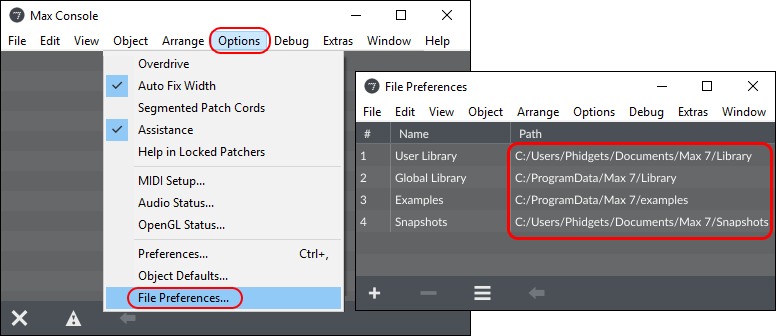
The folder that you copied earlier needs to be placed in any of the locations listed in File Preferences. Navigate to one of the locations and paste the folder:
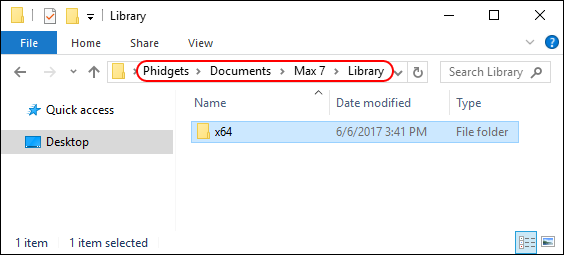
The Phidget Max library can now be referenced.
Development Environment Configuration
Using Our Examples
| Navigate to the examples folder located within the Phidget22MaxMSP folder you previously unpacked: | 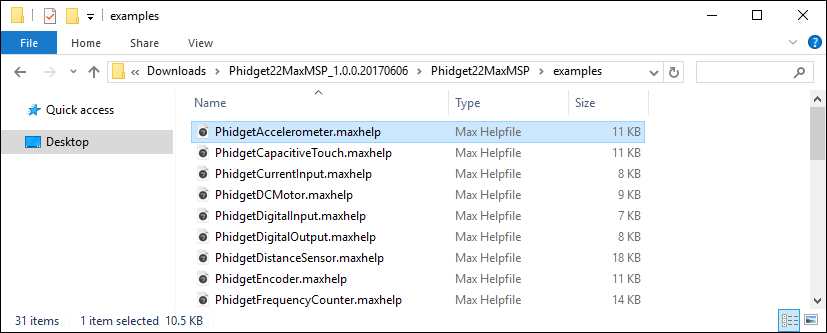
|
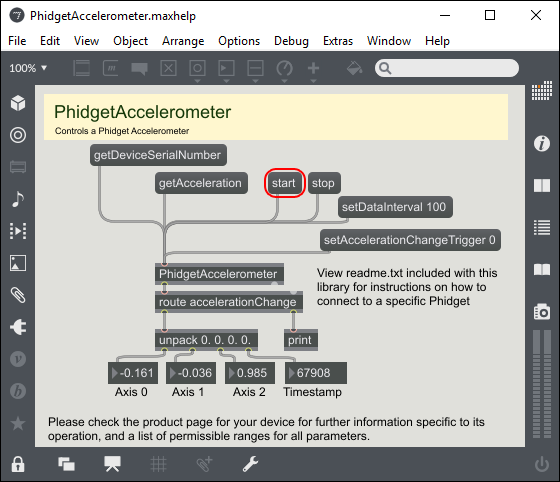
| From here, select an example that will work with your Phidget and open it in Max. You can run the example by simply pressing the start button. The example is now running. Play around with the device and experiment with some of the functionality. When you are ready, the next step is configuring your project and writing your own code! |
|
Writing your own Code
| You should now have working examples and a project that is configured. This teaching section will help you understand how the examples were written so you can start writing your own code. Your main reference for writing Max code will be:
| |
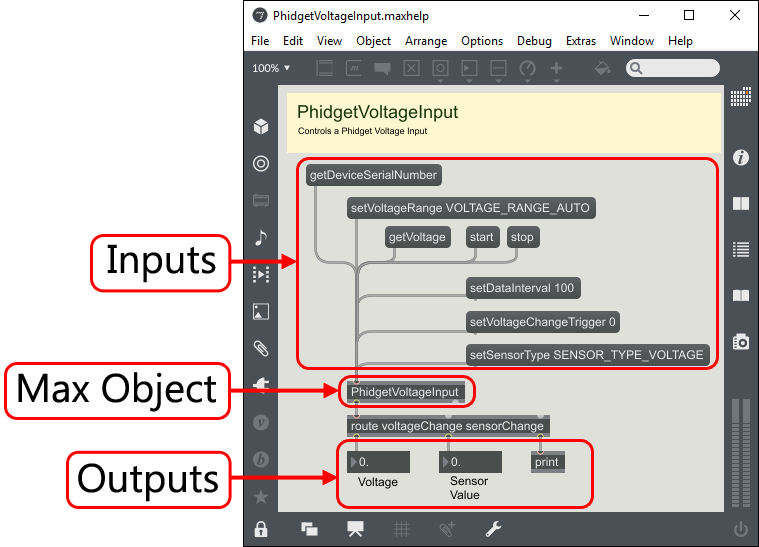
| First, let's explain how to operate the examples. We will take a look at the PhidgetVoltageInput example: For this particular example, the Max object is called PhidgetVoltageInput. Objects/message boxes are connected to the inputs and outputs of this object. Input objects will either cause a property of the device to change or request for a property to be retrieved. Output objects return the retrieved information. All supported functions for Max can be found in the Phidget22 API. |
|
| You can click on the getDeviceSerialNumber message box to request the Phidget to retrieve the serial number of the device. | 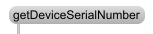 
|
| If your example contains a get[DataType] message box (e.g. getVoltage), click on it to cause the associated data to be output with a relevant prefix. | |
| If your example contains start and stop message boxes, you can use them to turn on continuous polling for events. For the PhidgetDigitalOutput example, there are setDutyCycle and setState message boxes that control the output. | |
| Your best resource to program in Max will be our examples. If you aren't familiar with concepts in Phidget programming, see the Phidget Programming Basics. | |
Step One: Initialize and Open
| |
| Initializing and opening the device is done by placing a new object. Other objects handle different Phidgets - a Spatial, a Light Sensor, a Motor Controller, etc. Only the name of the object changes. You can find the name for the object in the device's .maxhelp file (e.g. VoltageInput.maxhelp). If you are unsure what the software object for your device is, go to the API tab on its product page on our website. In the case of a Voltage Input, we name it PhidgetVoltageInput. Important: a local connection will reserve the device until closed. This prevents any other instances from retrieving data from the Phidget, including other programs. Every Phidget object in Max will automatically try to connect to and reserve a Phidget for itself. As long as a Max Phidget object is running, it will continuously try to connect to a Phidget, even trying to reconnect if it gets disconnected. |

|
Specifying a Phidget
| |
| When the instance is created as with the Voltage Input above, normally it will make a connection to the first device of its type it can find. The Phidget object can also be declared with a number of specifiers to open a specific Phidget instead.
Specifiers can be added to the object in the format: PhidgetExternal {Specifiers} These will be written in the form: specifier=value Available specifiers include:
| |
| Example: Opening a VoltageInput with serial number 349428. | 
|
Here are some other examples:
PhidgetDigitalInput
PhidgetDigitalInput serialnumber=35569 channel=1 hubport=2
PhidgetDigitalInput serialnumber=35569 hubport=2 ishubport=1 | |
Using a Phidget Over a Network
| |
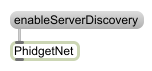
| To use the Network Server, first the Phidget needs to be plugged in to a computer that has the Network Server turned on within your local network (For information, see the Phidget Network Server page). Add a PhidgetNet object and send the message:enableServerDiscovery Then configure the object to connect to a remote server. |
|
Step Two: Wait for Attachment
| |
| In Max you do not need a specific waitForAttachment block. However, if your Phidget is not responding, ensure it is plugged in. Send a getAttached message to check. | |
Step Three: Do Things with the Phidget
| |
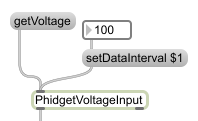
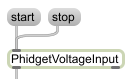
| Getting or setting values is done through messages linked to the inlet. Use set messages to change values and get messages to read them. Use start and stop to control continuous sampling. |
|
| Phidget data is accessed either by one-time polling or at a fixed rate via on-board timers for some devices. Getting or setting values directly via polling on the Phidget is done through messages linked to the inlet. The object’s inlet can be wired to send commands to the device, and the outlet used to retrieve the results. You can set values on the Phidget by using the set messages, and some properties can be read with get messages. To sample at a fixed rate, use the start and stop messages to start and stop the data flow, respectively. | |
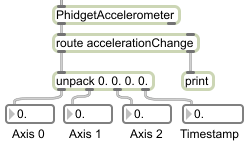
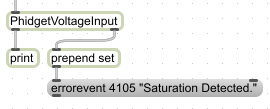
| Outlet data is always given a prefix to allow for routing. For instance, the digital input state state change event data is given the prefix stateChange, and the voltage input voltage change event similarly use voltageChange. The specific prefixes for each set of outlet data is listed on the API page for that class. The rightmost outlet on the Phidget object outputs error event data. This will send information on error events such as saturation events. To see which error events may apply to your device, check its API page. |
|
Step Four: Close and Delete
| |
| In Max you do not need a specific close/delete block. | |
Special Case: Multiple Phidgets
| |
| Multiple Phidgets can be used in a single program by adding additional objects. If using multiple devices of the same type, specify the serial number and channel to ensure the correct device is used. | |
Max Example Code
Phidget Programming Basics
To learn more about the structure of the example code, visit our Phidget Programming Basics guide.