Language - Objective C: Difference between revisions
No edit summary |
No edit summary |
||
| (8 intermediate revisions by 2 users not shown) | |||
| Line 1: | Line 1: | ||
{{#seo:|description=Learn how to use Phidget USB devices with Objective C.}} | |||
[[Category:Language]] | [[Category:Language]] | ||
== | == Get Started == | ||
With the Phidget22 library, it's easy to create Objective C applications that work with Phidget devices. | |||
== | == Objective C Libraries == | ||
If you've installed the Phidget drivers for [[OS - macOS|macOS]] or [[OS - iOS|iOS]], then you already have the files you need for your project. | |||
== Example Code == | |||
You can find examples for macOS and iOS on our [https://www.phidgets.com/?view=code_samples&lang=Objective-C Code Samples] page. | |||
= | [[Image:xcode_example2.png|link=https://cdn.phidgets.com/docs/images/3/34/Xcode_example2.png|center|750px]] | ||
== XCode Configuration == | |||
Xcode is an IDE provided by Apple that can be used to develop code in a wide variety of programming languages, including Objective C. | |||
=== Libraries and | === macOS === | ||
{| style="margin:auto;" class="table-no-border mw-collapsible mw-collapsed" | |||
|+ '''Instructions''' | |||
|colspan="2"|{{hiddenh4|Use Our Examples}}|| | |||
|- | |||
|Start the example by pressing the '''Run''' button:||[[Image:Macos_RunExample.png|link=https://cdn.phidgets.com/docs/images/2/20/Macos_RunExample.png|350px]] | |||
|- | |||
|The application will attach to the Phidget and show you some basic information. Here is an example of a Digital Output channel on a RFID Phidget.||[[Image:Macos_DigitalOutputExample.png|link=https://cdn.phidgets.com/docs/images/9/94/Macos_DigitalOutputExample.png|350px]] | |||
|- | |||
|colspan="2"|You should now have the example up and running for your device. Play around with the device and experiment with some of the functionality. The next step is configuring your project and writing your own code. | |||
|- | |||
|colspan="2"|{{hiddenh4|Starting a New Project}} | |||
|- | |||
|When you are building a project from scratch, or adding Phidgets to an existing project, you'll need to configure your development environment to properly link the Phidget iOS library. To begin, create a new Xcode project and select a macOS Cocoa application.||[[Image:Macos_Cocoa_Application.png|link=https://cdn.phidgets.com/docs/images/d/d2/Macos_Cocoa_Application.png|350px]] | |||
|- | |||
|Navigate to your target's Build Settings and find the '''Framework Search Path''' setting.||[[Image:Macos_frameworksearch2.png|link=https://cdn.phidgets.com/docs/images/9/97/Macos_frameworksearch2.png|350px]] | |||
|- | |||
|Add a reference to '''/Library/Frameworks''' where the Phidget22 framework is installed.||[[Image:Macos_frameworkpath2.png|link=https://cdn.phidgets.com/docs/images/d/d3/Macos_frameworkpath2.png|350px]] | |||
|- | |||
|Next, navigate to the '''Linked Frameworks and Libraries''' setting under '''General''' and add a reference to the Phidget22 framework which is installed to /Library/Frameworks. || [[Image:Macos_linkframework2.png|link=https://cdn.phidgets.com/docs/images/9/9f/Macos_linkframework2.png|350px]] | |||
|- | |||
|colspan="2"|Lastly, navigate to your header file and add a reference to phidget22.h | |||
<syntaxhighlight>#import <Phidget22/phidget22.h></syntaxhighlight> | |||
Your project now has access to Phidgets. See [[Phidget Programming Basics]] for guidance on writing your own code. | |||
|} | |||
=== iOS === | |||
{ | {| style="margin:auto;" class="table-no-border mw-collapsible mw-collapsed" | ||
|+ '''Instructions''' | |||
== | |colspan="2"|{{hiddenh4|Use Our Examples}}|| | ||
|- | |||
|colspan="2"|To develop iOS apps in Objective C, we'll be using XCode on a macOS development machine. You'll need both: | |||
* [https://www.phidgets.com/docs/OS_-_macOS Phidget macOS Drivers] installed | |||
* [https://www.phidgets.com/downloads/phidget22/libraries/ios/Phidget22_iOS.zip Phidget iOS Libraries] downloaded | |||
= | |- | ||
{{ | |Unpack the Objective-C example and navigate to Phidget.xcodeproj. Open the file in Xcode.||[[Image:ios_objc_open.png|link=https://cdn.phidgets.com/docs/images/9/9b/Ios_objc_open.png|350px]] | ||
|- | |||
= | |With '''Phidgets''' as your target, navigate to Build Settings and find the '''Header Search Paths''' setting.||[[Image:ios_objc_header.png|link=https://cdn.phidgets.com/docs/images/c/c8/Ios_objc_header.png|350px]] | ||
|- | |||
| The header file phidget22.h was included in the Phidget iOS libraries download. Add a reference to the folder that contains phidget22.h under the '''Header Search Paths''' setting.||[[Image:ios_objc_header_path.png|link=https://cdn.phidgets.com/docs/images/b/b3/Ios_objc_header_path.png|350px]] | |||
|- | |||
|Next, find the '''Other Linker Flags''' setting.||[[Image:ios_linker.png|link=https://cdn.phidgets.com/docs/images/5/59/Ios_linker.png|350px]] | |||
|- | |||
|Add a reference to the Phidget libraries that were included in the Phidget iOS libraries download.||[[Image:ios_linker_path.png|link=https://cdn.phidgets.com/docs/images/1/17/Ios_linker_path.png|350px]] | |||
|- | |||
|Now that the library files are linked, simply select the type of device you would like the application to run on and press play.||[[Image:ios_simulator.png|link=https://cdn.phidgets.com/docs/images/7/74/Ios_simulator.png|350px]] | |||
|- | |||
[[Image: | |The application will detect any servers that are currently online and have Phidgets connected. Here is an example output.<br/><br/>First, confirm that the Phidgets Example is working. Then, run the example for your specific device by selecting your server and then continue to navigate through the hierarchy until you reach your device. After tapping your device, the example will show automatically. Currently, we have example programs for the following classes: | ||
* DigitalInput | |||
* DigitalOutput | |||
* VoltageInput | |||
[[Image: | * VoltageRatioInput | ||
|[[Image:ios_phidgetapp.png|link=https://cdn.phidgets.com/docs/images/d/d8/Ios_phidgetapp.png|250px]] | |||
|- | |||
|Here is an example of what the VoltageInput example looks like.<br/><br/>You should now have the example up and running for your device. Play around with the device and experiment with some of the functionality. When you are ready, the next step is configuring your project and writing your own code!||[[Image:ios_example_run.png|link=https://cdn.phidgets.com/docs/images/2/25/Ios_example_run.png|250px]] | |||
|- | |||
|colspan="2"|{{hiddenh4|Starting a New Project}} | |||
|- | |||
|Select an iOS application. For this tutorial's purposes, we will use a Single View Application.||[[Image:ios_singleview.png|link=https://cdn.phidgets.com/docs/images/e/e8/Ios_singleview.png|350px]] | |||
|- | |||
|Name the project, select Objective-C as the language, and choose which devices will be supported.||[[Image:ios_nameproject_objc.png|link=https://cdn.phidgets.com/docs/images/1/13/Ios_nameproject_objc.png|350px]] | |||
|- | |||
|colspan="2"|Now that your project is created, you need to add references to the Phidget iOS libraries in the same way you added them to run our example code earlier in this guide. | |||
[[Image: | |||
[[Image: | |||
Add a reference to | |||
[[Image: | |||
[[Image: | |||
< | |||
</ | |||
* | |||
[[Image: | |||
{{ | |||
Select an iOS application. For this tutorial's purposes, we will use a Single View Application | |||
[[Image: | |||
Name the project, select Objective-C as the language, and choose which devices will be supported | |||
[[Image: | |||
Now that your project is created, you need to add references to the Phidget iOS libraries | |||
After you have linked the Phidget iOS libraries, simply add a reference to phidget22.h in your header file: | After you have linked the Phidget iOS libraries, simply add a reference to phidget22.h in your header file: | ||
<syntaxhighlight>#import <Phidget22/phidget22.h></syntaxhighlight> | |||
[[ | The project now has access to Phidgets and we are ready to begin coding. See [[Phidget Programming Basics]] for guidance on writing your own code. | ||
|- | |||
|} | |||
==Phidget Programming Basics== | |||
{{PhidgetProgrammingBasicsLink}} | |||
[ | ==API== | ||
[{{SERVER}}/?view=api&lang=C Phidget22 API] | |||
Latest revision as of 15:57, 17 March 2026
Get Started
With the Phidget22 library, it's easy to create Objective C applications that work with Phidget devices.
Objective C Libraries
If you've installed the Phidget drivers for macOS or iOS, then you already have the files you need for your project.
Example Code
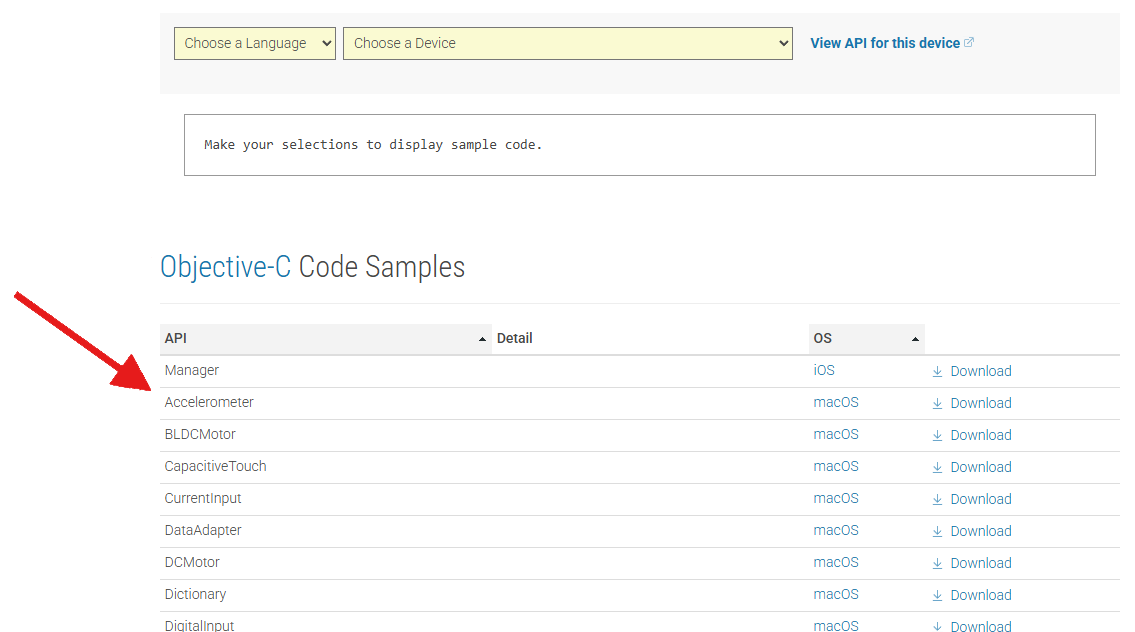
You can find examples for macOS and iOS on our Code Samples page.
XCode Configuration
Xcode is an IDE provided by Apple that can be used to develop code in a wide variety of programming languages, including Objective C.
macOS
Use Our Examples |
||
| Start the example by pressing the Run button: | 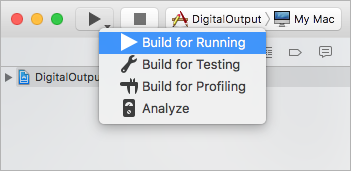
| |
| The application will attach to the Phidget and show you some basic information. Here is an example of a Digital Output channel on a RFID Phidget. | 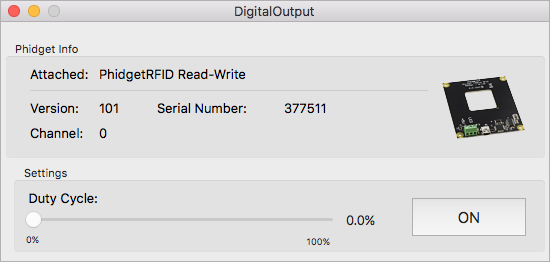
| |
| You should now have the example up and running for your device. Play around with the device and experiment with some of the functionality. The next step is configuring your project and writing your own code. | ||
Starting a New Project
| ||
| When you are building a project from scratch, or adding Phidgets to an existing project, you'll need to configure your development environment to properly link the Phidget iOS library. To begin, create a new Xcode project and select a macOS Cocoa application. | 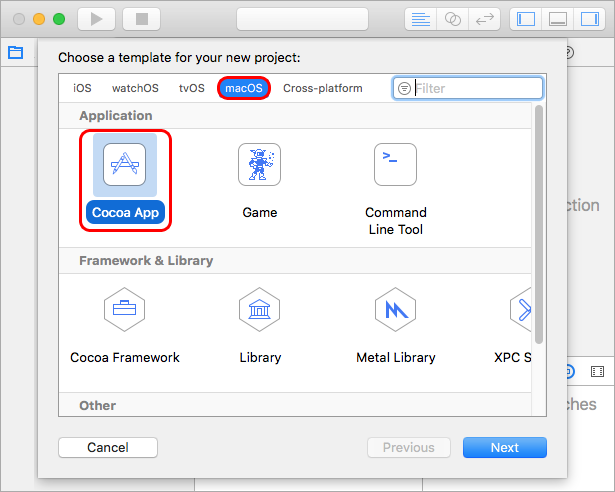
| |
| Navigate to your target's Build Settings and find the Framework Search Path setting. | 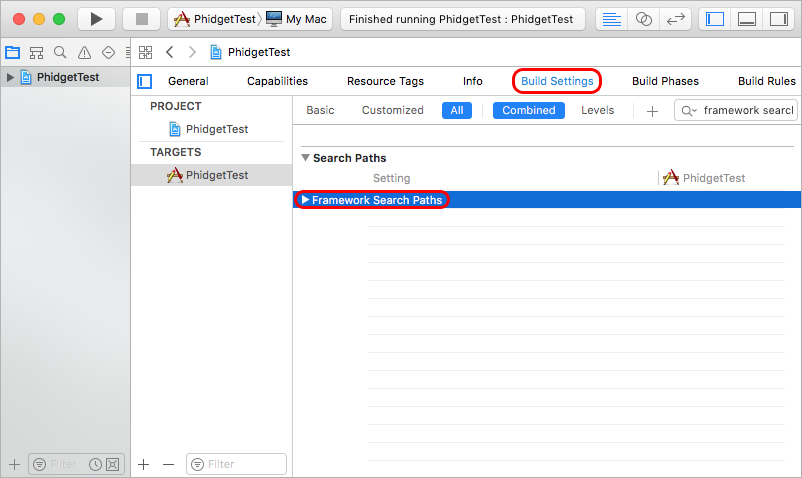
| |
| Add a reference to /Library/Frameworks where the Phidget22 framework is installed. | 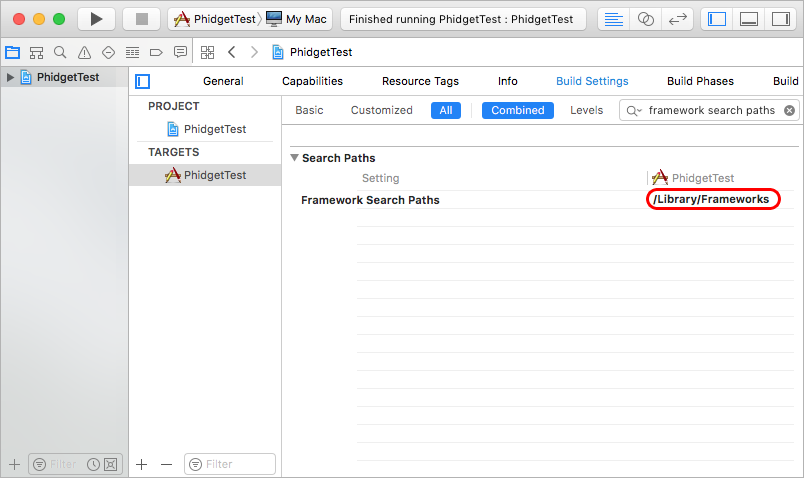
| |
| Next, navigate to the Linked Frameworks and Libraries setting under General and add a reference to the Phidget22 framework which is installed to /Library/Frameworks. | 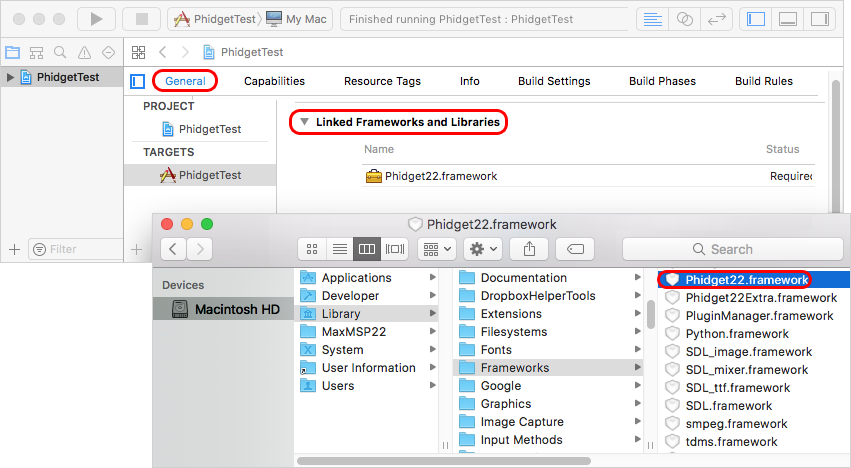
| |
Lastly, navigate to your header file and add a reference to phidget22.h
#import <Phidget22/phidget22.h>Your project now has access to Phidgets. See Phidget Programming Basics for guidance on writing your own code. | ||
iOS
Use Our Examples |
||
To develop iOS apps in Objective C, we'll be using XCode on a macOS development machine. You'll need both:
| ||
| Unpack the Objective-C example and navigate to Phidget.xcodeproj. Open the file in Xcode. | 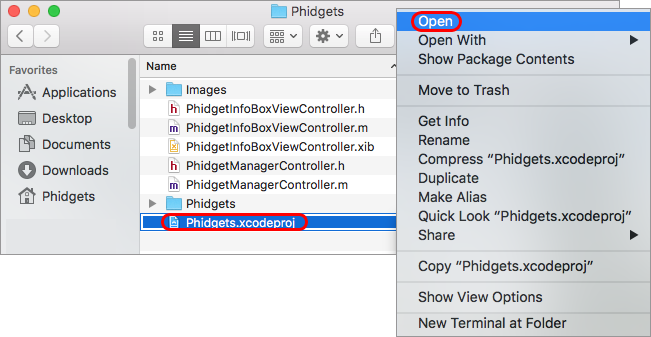
| |
| With Phidgets as your target, navigate to Build Settings and find the Header Search Paths setting. | 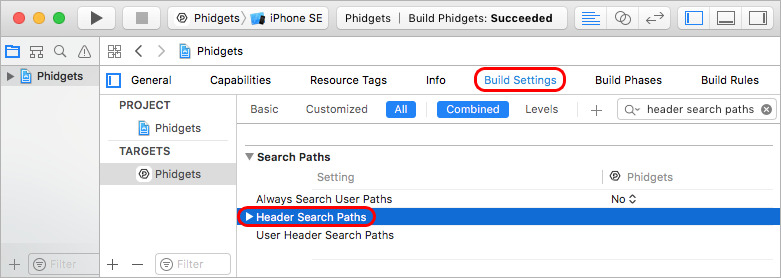
| |
| The header file phidget22.h was included in the Phidget iOS libraries download. Add a reference to the folder that contains phidget22.h under the Header Search Paths setting. | 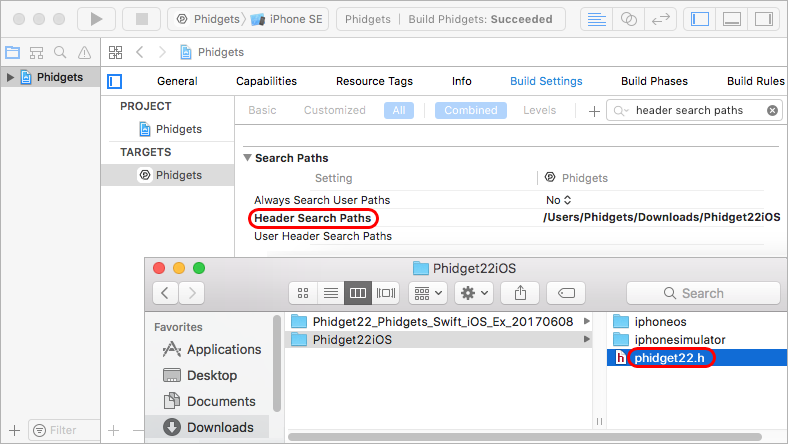
| |
| Next, find the Other Linker Flags setting. | 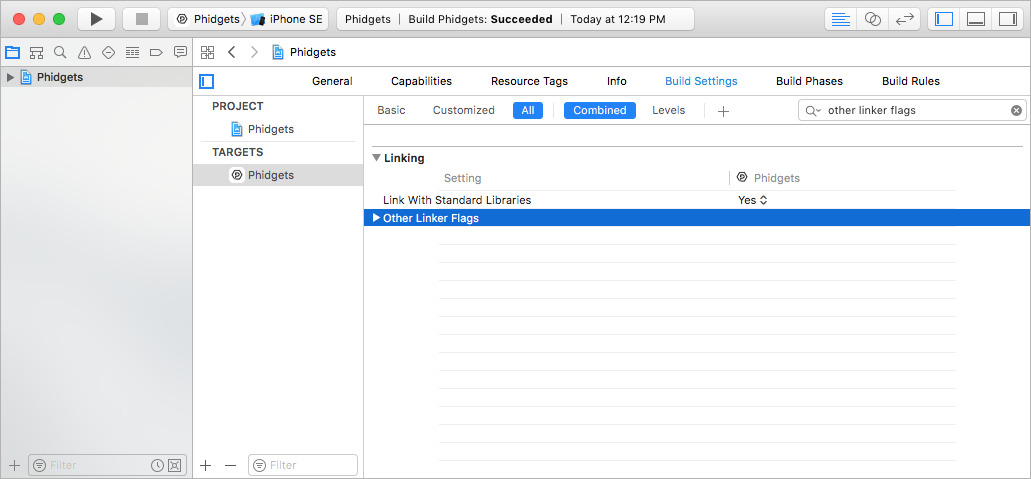
| |
| Add a reference to the Phidget libraries that were included in the Phidget iOS libraries download. | 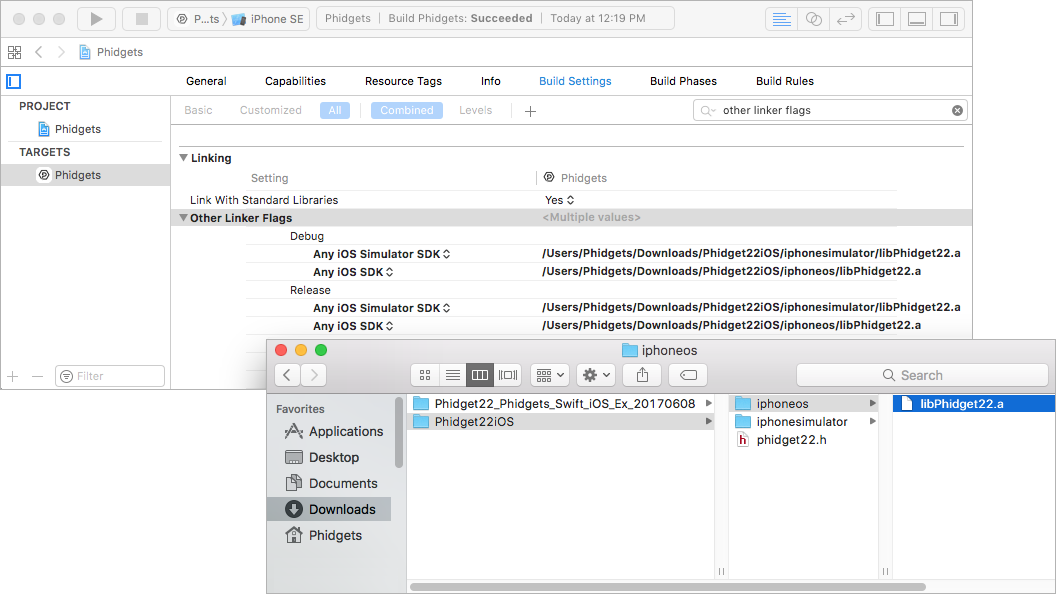
| |
| Now that the library files are linked, simply select the type of device you would like the application to run on and press play. | 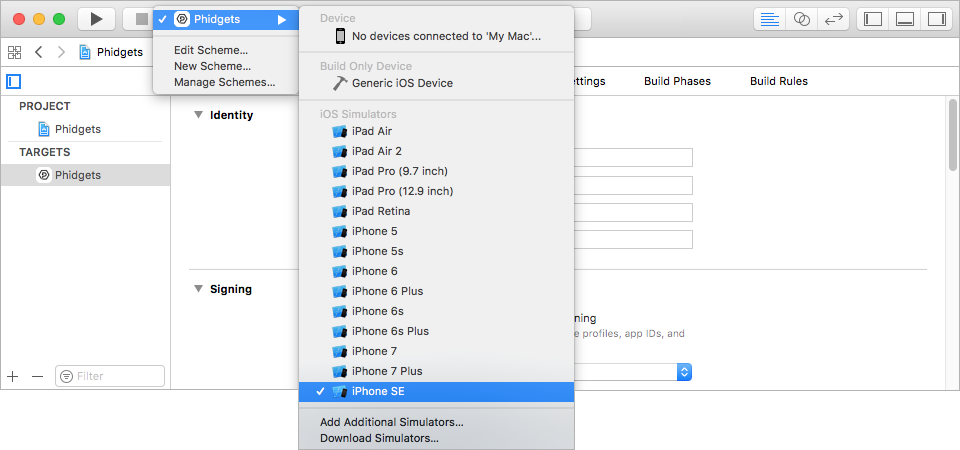
| |
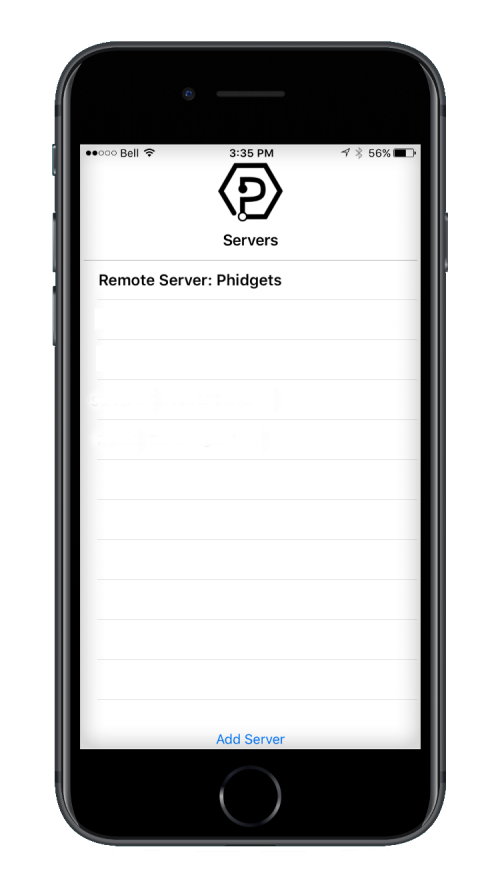
| The application will detect any servers that are currently online and have Phidgets connected. Here is an example output. First, confirm that the Phidgets Example is working. Then, run the example for your specific device by selecting your server and then continue to navigate through the hierarchy until you reach your device. After tapping your device, the example will show automatically. Currently, we have example programs for the following classes:
|
| |
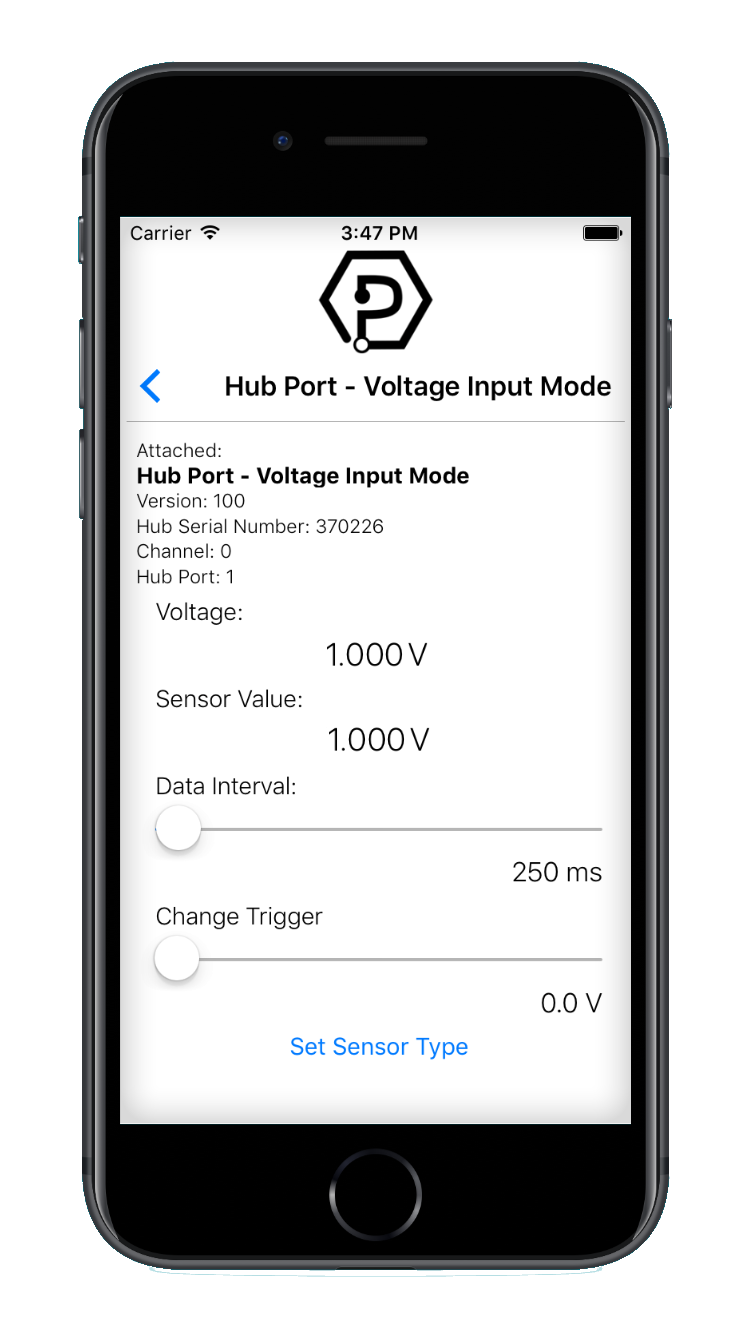
| Here is an example of what the VoltageInput example looks like. You should now have the example up and running for your device. Play around with the device and experiment with some of the functionality. When you are ready, the next step is configuring your project and writing your own code! |
| |
Starting a New Project
| ||
| Select an iOS application. For this tutorial's purposes, we will use a Single View Application. | 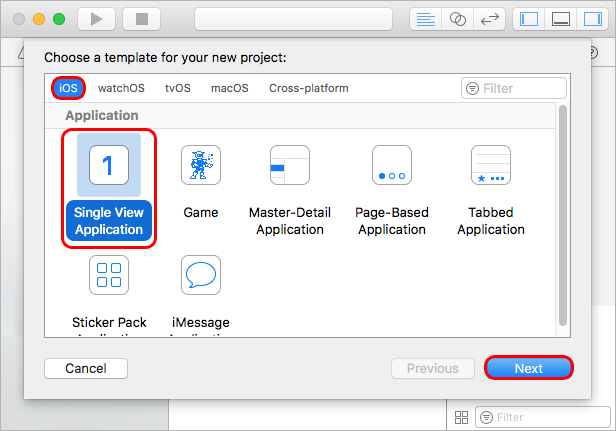
| |
| Name the project, select Objective-C as the language, and choose which devices will be supported. | 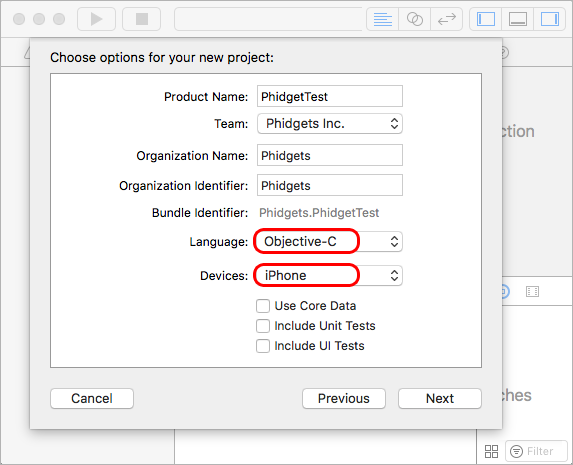
| |
| Now that your project is created, you need to add references to the Phidget iOS libraries in the same way you added them to run our example code earlier in this guide.
After you have linked the Phidget iOS libraries, simply add a reference to phidget22.h in your header file: #import <Phidget22/phidget22.h>The project now has access to Phidgets and we are ready to begin coding. See Phidget Programming Basics for guidance on writing your own code. | ||
Phidget Programming Basics
To learn more about the structure of the example code, visit our Phidget Programming Basics guide.