Language - Objective C: Difference between revisions

From Phidgets Support
No edit summary
No edit summary
 
(40 intermediate revisions by 2 users not shown)
Line 1: Line 1:
{{#seo:|description=Learn how to use Phidget USB devices with Objective C.}}
[[Category:Language]]
[[Category:Language]]
{{OSLang|[[File:icon-ObjC.png|64x64px|alt=|left|link=]]|Objective-C is an object-oriented programming language based on C.}}
__TOC__


== Introduction ==
== Get Started ==
With the Phidget22 library, it's easy to create Objective C applications that work with Phidget devices.


If this is your first time working with a Phidget, we suggest starting with the Getting Started page for your specific device. This can be found in the user guide for your device. That page will walk you through installing drivers and libraries for your operating system, and will then bring you back here to use Cocoa specifically.
== Objective C Libraries ==
Objective-C is capable of using the complete {{Phidget22API}}, including events. We also provide example code in Objective-C for all Phidget devices.
If you've installed the Phidget drivers for [[OS - macOS|macOS]] or [[OS - iOS|iOS]], then you already have the files you need for your project.  


Objective C programs can be developed with Xcode on OS X.
== Example Code ==
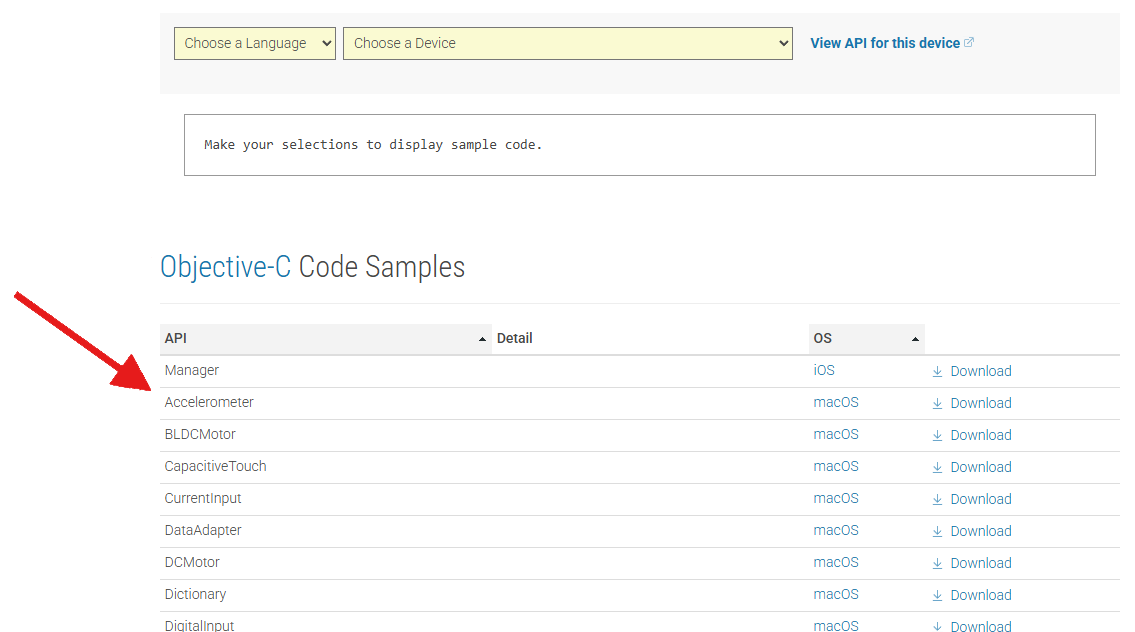
You can find examples for macOS and iOS on our [https://www.phidgets.com/?view=code_samples&lang=Objective-C Code Samples] page.


== Quick Downloads ==
[[Image:xcode_example2.png|link=https://cdn.phidgets.com/docs/images/3/34/Xcode_example2.png|center|750px]]


'''<span style="color:#FF0000">List of download links, to be added once files are available</span>'''
== XCode Configuration ==
Xcode is an IDE provided by Apple that can be used to develop code in a wide variety of programming languages, including Objective C.


=== Documentation ===
=== macOS ===
=== Example Code ===
{| style="margin:auto;" class="table-no-border mw-collapsible mw-collapsed"
=== Libraries and Drivers ===
|+ '''Instructions'''
 
|colspan="2"|{{hiddenh4|Use Our Examples}}||
== Getting Started with Objective C ==
|-  
 
|Start the example by pressing the '''Run''' button:||[[Image:Macos_RunExample.png|link=https://cdn.phidgets.com/docs/images/2/20/Macos_RunExample.png|350px]]
If you are new to writing code for Phidgets, we recommend starting by running, then modifying existing examples. This will allow you to:
|-
{{ExampleCodeReasons}}
|The application will attach to the Phidget and show you some basic information. Here is an example of a Digital Output channel on a RFID Phidget.||[[Image:Macos_DigitalOutputExample.png|link=https://cdn.phidgets.com/docs/images/9/94/Macos_DigitalOutputExample.png|350px]]
 
|-
==macOS==
|colspan="2"|You should now have the example up and running for your device. Play around with the device and experiment with some of the functionality. The next step is configuring your project and writing your own code.
The Objective-C examples were written with Xcode 8.2, and this tutorial assumes its use. Other versions of Xcode should work as well and would be set up in a similar manner.
|-
===Xcode===
|colspan="2"|{{hiddenh4|Starting a New Project}}
====Use our examples====
|-
 
|When you are building a project from scratch, or adding Phidgets to an existing project, you'll need to configure your development environment to properly link the Phidget iOS library. To begin, create a new Xcode project and select a macOS Cocoa application.||[[Image:Macos_Cocoa_Application.png|link=https://cdn.phidgets.com/docs/images/d/d2/Macos_Cocoa_Application.png|350px]]
If Xcode is not already installed on your system, then you will need to install it. You can download it for free from the Mac app store.
|-
 
|Navigate to your target's Build Settings and find the '''Framework Search Path''' setting.||[[Image:Macos_frameworksearch2.png|link=https://cdn.phidgets.com/docs/images/9/97/Macos_frameworksearch2.png|350px]]
Next, you can download our '''<span style="color:#FF0000">examples </span>'''. If this is your first time working with Phidgets, we recommend using the HelloWorld example as it will work with every Phidget device and is easy to comprehend.
|-
 
|Add a reference to '''/Library/Frameworks''' where the Phidget22 framework is installed.||[[Image:Macos_frameworkpath2.png|link=https://cdn.phidgets.com/docs/images/d/d3/Macos_frameworkpath2.png|350px]]
Open the HelloWorld example and run it. You should see a window that looks like this:
|-
 
|Next, navigate to the '''Linked Frameworks and Libraries''' setting under '''General''' and add a reference to the Phidget22 framework which is installed to /Library/Frameworks. || [[Image:Macos_linkframework2.png|link=https://cdn.phidgets.com/docs/images/9/9f/Macos_linkframework2.png|350px]]
[[Image: Cocoa_HelloWorld.png | 500px]]
|-
 
|colspan="2"|Lastly, navigate to your header file and add a reference to phidget22.h
The example will list every Phidgets device connected to the computer at runtime. In addition, it will update you when a device has been connected or disconnected from the computer.
<syntaxhighlight>#import <Phidget22/phidget22.h></syntaxhighlight>
 
Your project now has access to Phidgets. See [[Phidget Programming Basics]] for guidance on writing your own code.  
Now that you have mastered the basics, go and find the example project for your specific device. Run the example to get a feel for the device and its basic functions. Now you can take a look at the code and see how things work. While you are doing this, you can refer to the  [[#Edit the Examples|Edit the Examples]] section to guide you through all the parts of the example project.
|}
 
====Write your own code====
 
When you are building a project from scratch, or adding Phidget functionality to an existing project, you'll need to configure your developement enviornment to properly link the Phidget iOS library. To begin:
 
1. Create a new Xcode project.
 
[[Image:Cocoa_CreateProject.png | 600px]]
 
2. Select a OS X Cocoa application.
 
[[Image:Cocoa_Application.png | 600px]]
 
3. Give the project a descriptive name such as PhidgetTest.
 
[[Image:Cocoa_NameProject.png | 600px]]
 
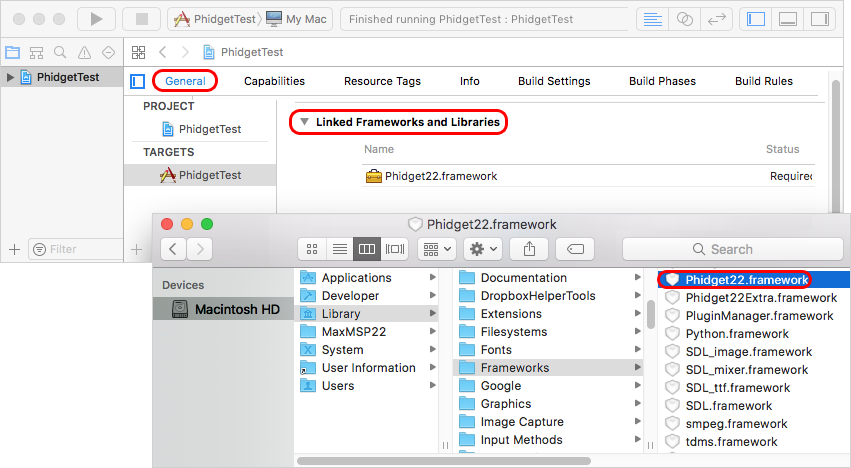
4. Next, add the Phidget22 Framework located in: Library Frameworks → Phidget22.framework
 
5 Now navigate to the header file that was generated and add a reference to phidget22.h.
 
<syntaxhighlight lang="objc">
#import <Phidget22/phidget22.h>
</syntaxhighlight>
 
6. Now your project has access to Phidgets and you are ready to begin coding.
 
== iOS ==
 
===Xcode===
====Use our examples====
If Xcode is not already installed on your system, then you will need to install it. You can download it for free from the Mac app store.
 
Start by ensuring the [[Phidget Network Service]] is running on the computer that the Phidget is physically plugged in and connected to.  This computer needs to have a USB port and should be running macOS or one of our other supported [[Operating System Support|operating systems]]. For directions on how to set up and run the [[Phidget Network Service]] refer to the page for that operating system.
 
Then, on the macOS system that will be used for developing the iOS application, download and unpack the '''<span style="color:#FF0000">Phidget Examples for Objective C</span>'''. The easiest way to confirm that your environment is set up is to compile and the Phidgets app. Start by opening the Phidgets.xcodeproj in Xcode.
 
 
Next, select the target you want the application to run on. In order to run the example on a physical device, you must be an '''<span style="color:#FF0000">Apple Developer</span>''', otherwise you can choose to run the example on a simulator.
 
[[Image:ios_SelectTarget.png]]
 
To run the example, click on the Run button.
 
[[Image:ios_RuniOS.png]]
 
The program will detect any servers that are currently online and have Phidgets connected. Here is an example output:
 
[[Image:ios_PhidgetApp_MainScreen.png | 500px]]
 
After confirming that the Phidgets Example is working, you can proceed to run the example for your specific device. Do this by continuing to navigate through the hierarchy until you reach your device, after tapping your device the example will show automatically. Currently, we have example programs for the following software objects:


=== iOS ===
{| style="margin:auto;" class="table-no-border mw-collapsible mw-collapsed"
|+ '''Instructions'''
|colspan="2"|{{hiddenh4|Use Our Examples}}||
|-
|colspan="2"|To develop iOS apps in Objective C, we'll be using XCode on a macOS development machine. You'll need both:
* [https://www.phidgets.com/docs/OS_-_macOS Phidget macOS Drivers] installed
* [https://www.phidgets.com/downloads/phidget22/libraries/ios/Phidget22_iOS.zip Phidget iOS Libraries] downloaded
|-
|Unpack the Objective-C example and navigate to Phidget.xcodeproj. Open the file in Xcode.||[[Image:ios_objc_open.png|link=https://cdn.phidgets.com/docs/images/9/9b/Ios_objc_open.png|350px]]
|-
|With '''Phidgets''' as your target, navigate to Build Settings and find the '''Header Search Paths''' setting.||[[Image:ios_objc_header.png|link=https://cdn.phidgets.com/docs/images/c/c8/Ios_objc_header.png|350px]]
|-
| The header file phidget22.h was included in the Phidget iOS libraries download. Add a reference to the folder that contains phidget22.h under the '''Header Search Paths''' setting.||[[Image:ios_objc_header_path.png|link=https://cdn.phidgets.com/docs/images/b/b3/Ios_objc_header_path.png|350px]]
|-
|Next, find the '''Other Linker Flags''' setting.||[[Image:ios_linker.png|link=https://cdn.phidgets.com/docs/images/5/59/Ios_linker.png|350px]]
|-
|Add a reference to the Phidget libraries that were included in the Phidget iOS libraries download.||[[Image:ios_linker_path.png|link=https://cdn.phidgets.com/docs/images/1/17/Ios_linker_path.png|350px]]
|-
|Now that the library files are linked, simply select the type of device you would like the application to run on and press play.||[[Image:ios_simulator.png|link=https://cdn.phidgets.com/docs/images/7/74/Ios_simulator.png|350px]]
|-
|The application will detect any servers that are currently online and have Phidgets connected. Here is an example output.<br/><br/>First, confirm that the Phidgets Example is working. Then, run the example for your specific device by selecting your server and then continue to navigate through the hierarchy until you reach your device. After tapping your device, the example will show automatically. Currently, we have example programs for the following classes:
* DigitalInput
* DigitalInput
* DigitalOutput
* DigitalOutput
* VoltageInput
* VoltageInput
* VoltageRatioInput
* VoltageRatioInput
|[[Image:ios_phidgetapp.png|link=https://cdn.phidgets.com/docs/images/d/d8/Ios_phidgetapp.png|250px]]
|-
|Here is an example of what the VoltageInput example looks like.<br/><br/>You should now have the example up and running for your device. Play around with the device and experiment with some of the functionality. When you are ready, the next step is configuring your project and writing your own code!||[[Image:ios_example_run.png|link=https://cdn.phidgets.com/docs/images/2/25/Ios_example_run.png|250px]]
|-
|colspan="2"|{{hiddenh4|Starting a New Project}}
|-
|Select an iOS application. For this tutorial's purposes, we will use a Single View Application.||[[Image:ios_singleview.png|link=https://cdn.phidgets.com/docs/images/e/e8/Ios_singleview.png|350px]]
|-
|Name the project, select Objective-C as the language, and choose which devices will be supported.||[[Image:ios_nameproject_objc.png|link=https://cdn.phidgets.com/docs/images/1/13/Ios_nameproject_objc.png|350px]]
|-
|colspan="2"|Now that your project is created, you need to add references to the Phidget iOS libraries in the same way you added them to run our example code earlier in this guide.


Here is an example of what the DigitalOutput example looks like:
After you have linked the Phidget iOS libraries, simply add a reference to phidget22.h in your header file:
 
[[Image:ios_PhidgetApp_DigitalOutput.png | 500px]]
 
Once you have the Objective-C example running, we have a [[#Editing the Code|teaching]] section below to help you follow them.
 
====Write your own code====
 
Whether you are  building a project from scratch, or adding Phidget functionality to an existing project, you will need to configure your development environment to properly link the Phidget library. To begin:
 
1. Create a new Xcode project
 
[[Image:Cocoa_CreateProject.png | 500px]]
 
2. Select an iOS application. For this tutorial's purposes, we will use a Single View Application.
 
[[Image:iOS_SingleView.png | 500px]]
 
3. Give the project a descriptive name such as PhidgetTest, select Objective-C as the language, and choose what kind of devices you want to use the app for. For this tutorial we will allow this app to be used universally.
 
[[Image:iOS_NameProject.png | 500px]]
 
A .xcodeproj file will be created in the destination folder.
 
4. Download the '''<span style="color:#FF0000">Phidget iOS Library</span>''' and extract it. Inside you will find iphoneos and iphonesimulator folders. Move the two folders as well as the phidget22.h file into the same directory as the newly created .xcodeproj
 
5. In Xcode, open Project Settings → Build Settings and navigate to the Linking section
 
6. In Linking → Other Linker Flags, following the following steps:
 
Select Any iOS Simulator SDK and enter: $(SRCROOT)/iphonesimulator/libPhidget22.a
 
Select Any iOS SDK and enter: $(SRCROOT)/iphoneos/libPhidget22.a
 
[[Image:iOS_LinkerFlags.png]]
 
 
7. In Search Paths→Header Search Paths enter $(SRCROOT)
 
[[Image:iOS_HeaderSearchPaths.png]]
 
8. In your header file, add a reference to phidget22.h
 
<syntaxhighlight lang="objc">
#import "phidget22.h"
</syntaxhighlight>
 
The project now has access to Phidgets and we are ready to begin coding.
 
== Edit the Examples ==
 
By following the instructions for your operating system and compiler above, you probably now have a working example and want to understand it better so you can change it to do what you want. This teaching section has resources for you to learn from the examples and write your own.
Your main reference for writing Objective-C code will be the {{Phidget22API}} Manual.
 
=== Code Snippets ===
 
The following code snippets describe how to do various general tasks with Phidgets. You should be able to find places in the examples where these snippets exist, and modify them to suit your requirements.
 
==== Step One: Initialize and Open ====
First, ensure you have given your program access to Phidgets as described in the [[#Write_your_own_code|Write Your Own Code]] section, Then, you will need to declare your Phidget variable in your code. For example, we can declare a Phidget Digital Output like this:
 
<syntaxhighlight lang="objc">
PhidgetDigitalInput ch;
</syntaxhighlight>
 
The object name for any Phidget is listed in the {{Phidget22API}} manual. Every type of Phidget also inherits functionality from the Phidget base class.
 
Next, the Phidget object needs to be initialized and opened.
 
<syntaxhighlight lang="objc">
PhidgetDigitalInput_create(&ch);
Phidget_open((PhidgetHandle)ch);
</syntaxhighlight>
 
==== Step Two: Wait for Attachment (plugging in) of the Phidget ====
Simply calling open does not guarantee you can use the Phidget immediately. To use a Phidget, it must be plugged in (attached). We can handle this by using event driven programming and tracking the attach events and detach events. Alternatively, we can call the following function:
 
<syntaxhighlight lang="objc">
Phidget_openWaitForAttachment(ch, 5000); //wait for attach for 5 seconds, if not time out
</syntaxhighlight>
 
Waiting for attachment will block indefinitely until a connection is made, or until the timeout value is exceeded.
 
To use events to handle attachments, we need to first declare the function that will be called when an attach event is fired - in this case we will call the function gotAttach.
 
<syntaxhighlight lang="objc">
static void gotAttach(PhidgetHandle phid, void *context){
    [(__bridge id)context performSelectorOnMainThread:@selector(deviceAttached)
                                          withObject:nil
                                        waitUntilDone:NO];
}
</syntaxhighlight>
 
Next, we have to modify our create/open code to emulate the following:
 
<syntaxhighlight lang="objc">
PhidgetDigitalInput_create(&ch);
Phidget_setOnAttachHandler((PhidgetHandle)ch,gotAttach,(__bridge void*)self);
Phidget_open((PhidgetHandle)ch);
</syntaxhighlight>
 
==== Step Three: Do Things with the Phidget ====
We recommend the use of event driven programming when working with Phidgets. In a similar way to [[#Step Two: Wait for Attachment (plugging in) of the Phidget|handling an attach event]] as described above, we can add an event handler with the following code:
 
<syntaxhighlight lang="objc">
PhidgetDigitalInput_setOnStateChangeHandler(ch, gotStateChange, (__bridge void*)self);
</syntaxhighlight>
 
This code will connect a function and an event. In this case, the gotStateChange function will be called when there has been a change to the devices input. Next, we need to create the gotStateChange function.
 
<syntaxhighlight lang="objc">
void gotStateChange(PhidgetDigitalInputHandle phid, void *context, int state){
        [(__bridge id)context performSelectorOnMainThread:@selector(onStateChangeHandler:)
                                              withObject:[NSNumber numberWithInt:state]
                                            waitUntilDone:NO];
}
</syntaxhighlight>
 
Above, the onStateChangeHandler method is invoked on the main thread. Event data is stored as an NSNumber.
 
The method onStateChangeHandler is defined as follows:
 
<syntaxhighlight lang="objc">
- (void)onStateChangeHandler:(NSNumber *)state{
    if(state.intValue == 1){
        stateTextField.stringValue = @"True";
    }
    else{
        stateTextField.stringValue = @"False";
    }
}
</syntaxhighlight>
 
The example shown above simply changes the text of a UITextField to display whether the input is true or false.
 
Some events such as the attach or detach events belong to the base Phidget object and are thus common to all Phidgets. Please refer to the {{Phidget22API}} manual and the Objective-C examples for a list of events and their usage.
 
If events do not suit your needs, you can also poll the device directly for data using code like this:
 
<syntaxhighlight lang="objc">
int state;
PhidgetDigitalInput_getState(ch, &state);
stateTextField.stringValue = [NSString stringWithFormat:@"%@", state ? @"True" : @"False"];
</syntaxhighlight>
 
Polling code can be used inside a polling loop as an alternative to event driven programming.
 
==== Step Four: Close and Delete ====
At the end of your program, don't forget to close your device.
 
<syntaxhighlight lang="objc">
Phidget_close((PhidgetHandle)ch);
PhidgetDigitalInput_delete(&ch);
</syntaxhighlight>
 
== Further Reading ==
 
[[Phidget Programming Basics]] - Here you can find the basic concepts to help you get started with making your own programs that use Phidgets.
 
[[Data Interval/Change Trigger]] - Learn about these two properties that control how much data comes in from your sensors.
 
[[Using Multiple Phidgets]] - It can be difficult to figure out how to use more than one Phidget in your program. This page will guide you through the steps.
 
[[Polling vs. Events]] - Your program can gather data in either a polling-driven or event-driven manner. Learn the difference to determine which is best for your application.


[[Logging, Exceptions, and Errors]] - Learn about all the tools you can use to debug your program.
<syntaxhighlight>#import <Phidget22/phidget22.h></syntaxhighlight>


[[Phidget Network Service]] - Phidgets can be controlled and communicated with over your network- either wirelessly or over ethernet.
The project now has access to Phidgets and we are ready to begin coding. See [[Phidget Programming Basics]] for guidance on writing your own code.
|-
|}


== Common Problems and Solutions/Workarounds ==
==Phidget Programming Basics==
{{PhidgetProgrammingBasicsLink}}


'''<span style="color:#FF0000">If you know of common problems using this lanaguage (for example, having to create sub-VIs when using multiple phidgets in labview) put them here. </span>'''
==API==
[{{SERVER}}/?view=api&lang=C Phidget22 API]

Latest revision as of 15:57, 17 March 2026


Get Started

With the Phidget22 library, it's easy to create Objective C applications that work with Phidget devices.

Objective C Libraries

If you've installed the Phidget drivers for macOS or iOS, then you already have the files you need for your project.

Example Code

You can find examples for macOS and iOS on our Code Samples page.
Xcode example2.png

XCode Configuration

Xcode is an IDE provided by Apple that can be used to develop code in a wide variety of programming languages, including Objective C.

macOS

Instructions
Use Our Examples
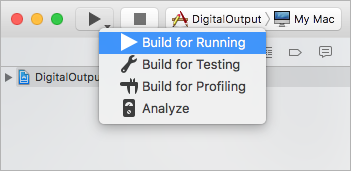
Start the example by pressing the Run button: Macos RunExample.png
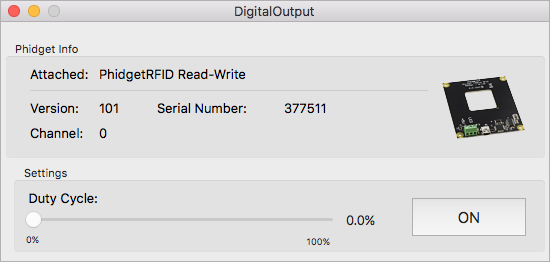
The application will attach to the Phidget and show you some basic information. Here is an example of a Digital Output channel on a RFID Phidget. Macos DigitalOutputExample.png
You should now have the example up and running for your device. Play around with the device and experiment with some of the functionality. The next step is configuring your project and writing your own code.
Starting a New Project
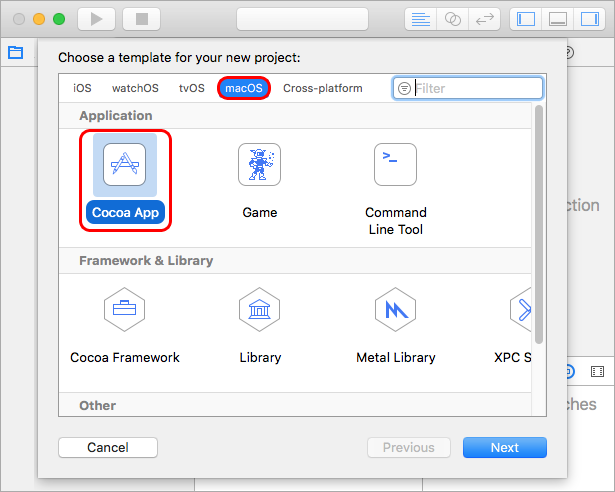
When you are building a project from scratch, or adding Phidgets to an existing project, you'll need to configure your development environment to properly link the Phidget iOS library. To begin, create a new Xcode project and select a macOS Cocoa application. Macos Cocoa Application.png
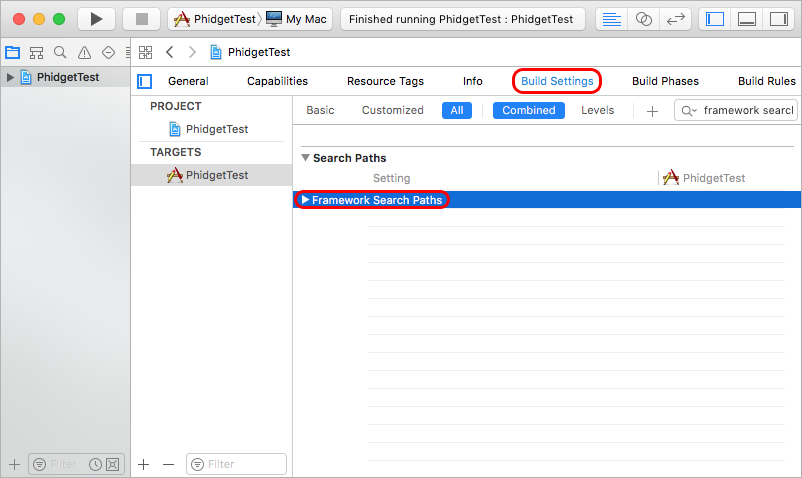
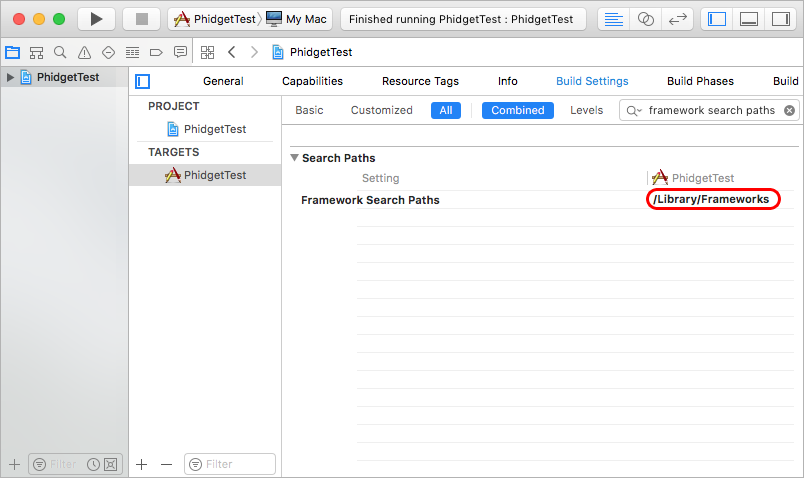
Navigate to your target's Build Settings and find the Framework Search Path setting. Macos frameworksearch2.png
Add a reference to /Library/Frameworks where the Phidget22 framework is installed. Macos frameworkpath2.png
Next, navigate to the Linked Frameworks and Libraries setting under General and add a reference to the Phidget22 framework which is installed to /Library/Frameworks. Macos linkframework2.png
Lastly, navigate to your header file and add a reference to phidget22.h
#import <Phidget22/phidget22.h>

Your project now has access to Phidgets. See Phidget Programming Basics for guidance on writing your own code.

iOS

Instructions
Use Our Examples
To develop iOS apps in Objective C, we'll be using XCode on a macOS development machine. You'll need both:
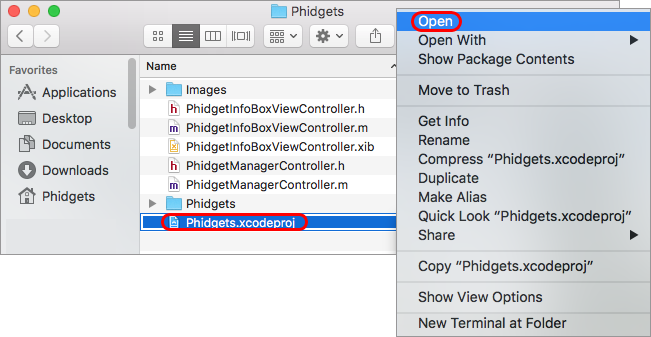
Unpack the Objective-C example and navigate to Phidget.xcodeproj. Open the file in Xcode. Ios objc open.png
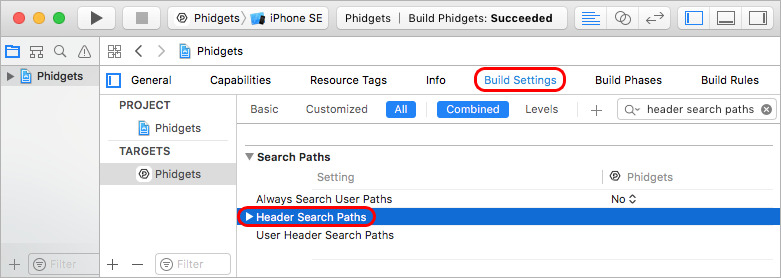
With Phidgets as your target, navigate to Build Settings and find the Header Search Paths setting. Ios objc header.png
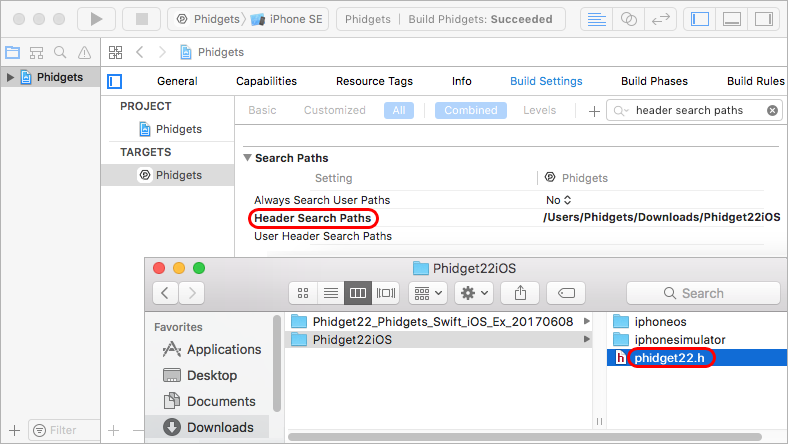
The header file phidget22.h was included in the Phidget iOS libraries download. Add a reference to the folder that contains phidget22.h under the Header Search Paths setting. Ios objc header path.png
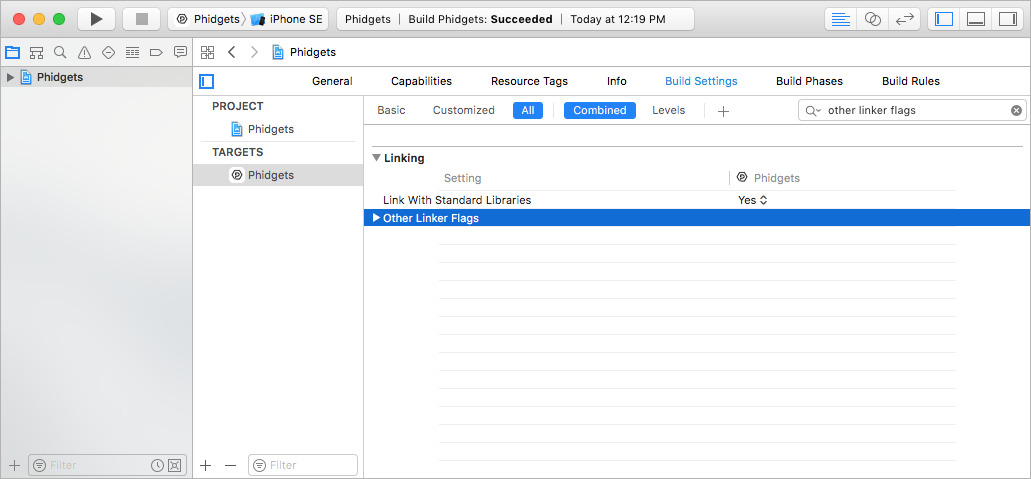
Next, find the Other Linker Flags setting. Ios linker.png
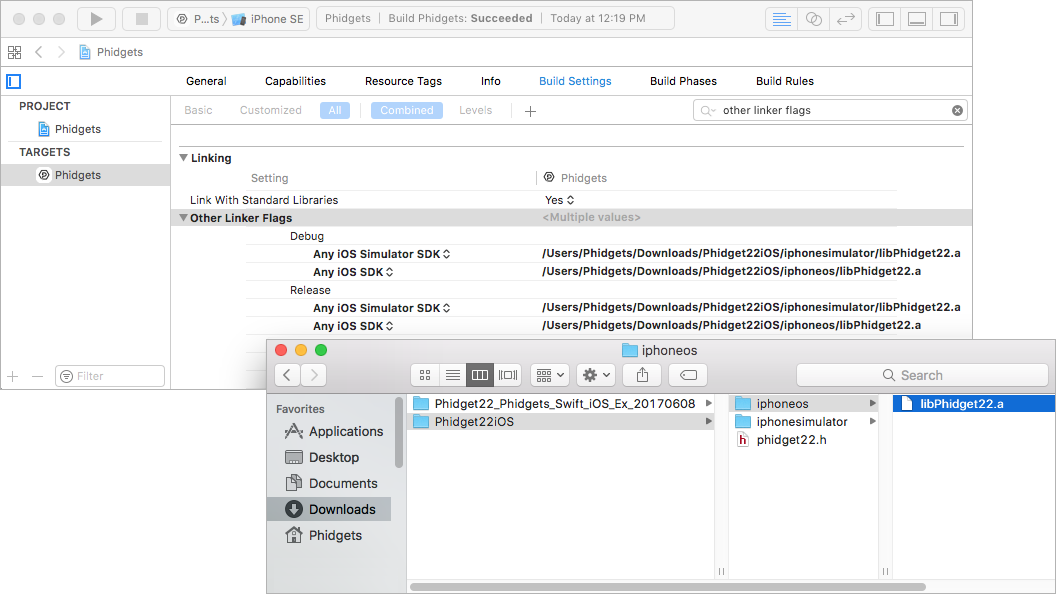
Add a reference to the Phidget libraries that were included in the Phidget iOS libraries download. Ios linker path.png
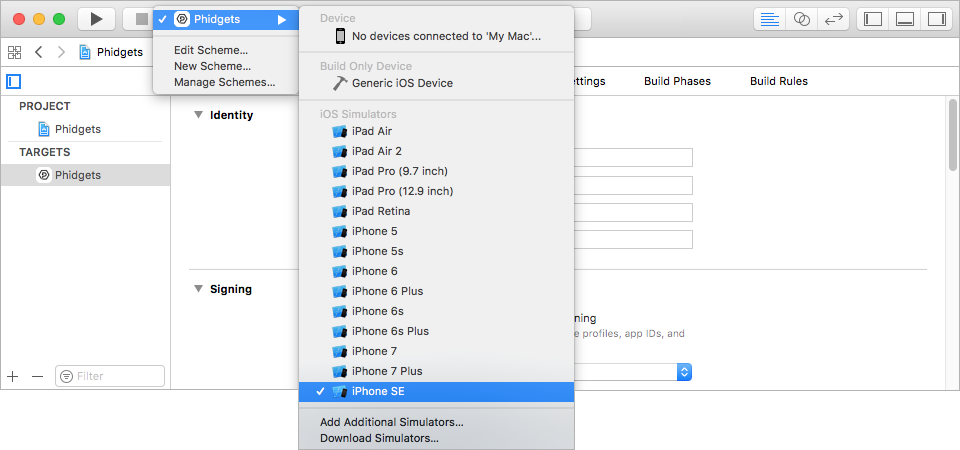
Now that the library files are linked, simply select the type of device you would like the application to run on and press play. Ios simulator.png
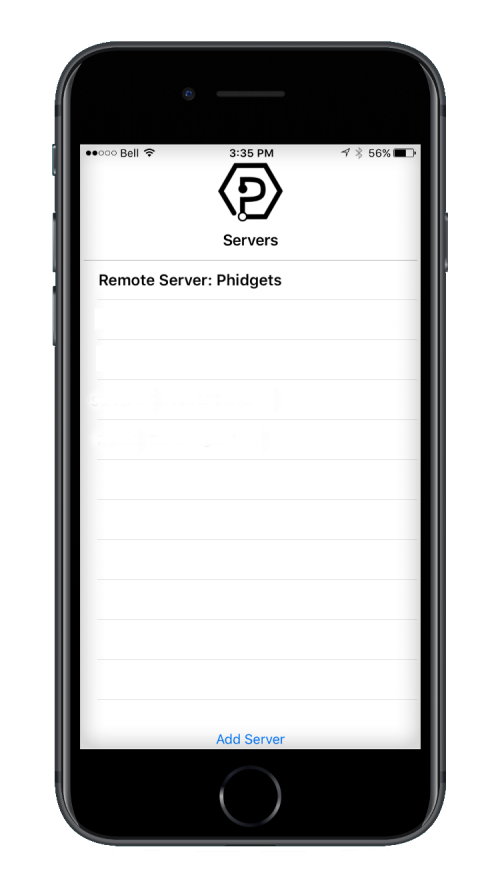
The application will detect any servers that are currently online and have Phidgets connected. Here is an example output.

First, confirm that the Phidgets Example is working. Then, run the example for your specific device by selecting your server and then continue to navigate through the hierarchy until you reach your device. After tapping your device, the example will show automatically. Currently, we have example programs for the following classes:
  • DigitalInput
  • DigitalOutput
  • VoltageInput
  • VoltageRatioInput
Ios phidgetapp.png
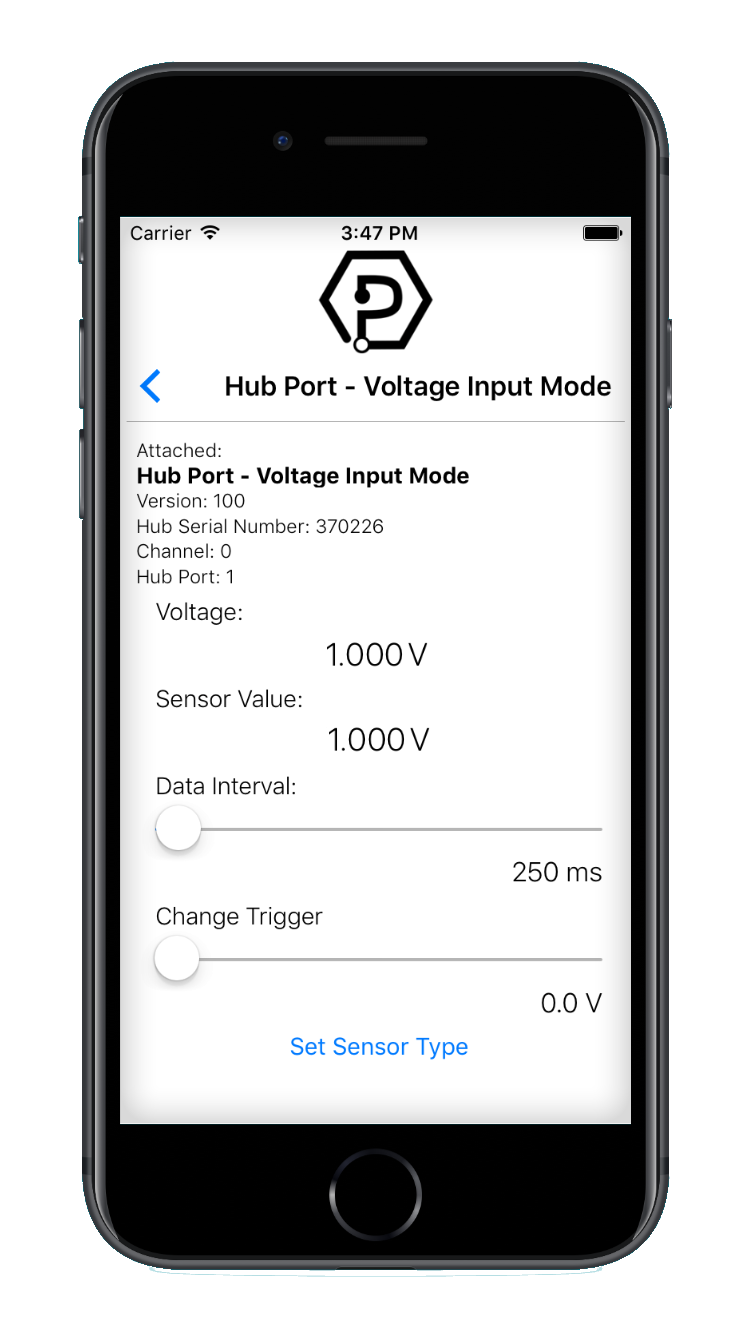
Here is an example of what the VoltageInput example looks like.

You should now have the example up and running for your device. Play around with the device and experiment with some of the functionality. When you are ready, the next step is configuring your project and writing your own code!
Ios example run.png
Starting a New Project
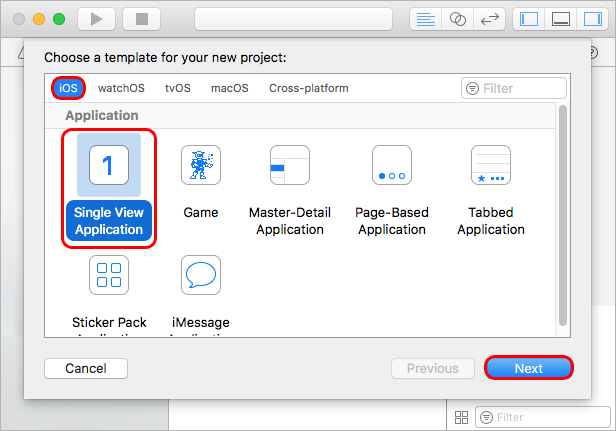
Select an iOS application. For this tutorial's purposes, we will use a Single View Application. Ios singleview.png
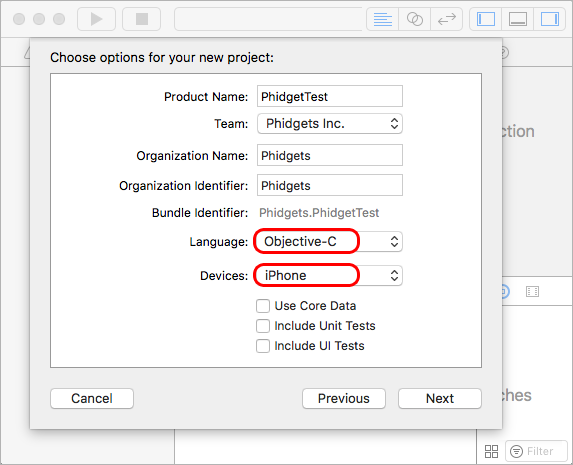
Name the project, select Objective-C as the language, and choose which devices will be supported. Ios nameproject objc.png
Now that your project is created, you need to add references to the Phidget iOS libraries in the same way you added them to run our example code earlier in this guide.

After you have linked the Phidget iOS libraries, simply add a reference to phidget22.h in your header file:

#import <Phidget22/phidget22.h>

The project now has access to Phidgets and we are ready to begin coding. See Phidget Programming Basics for guidance on writing your own code.

Phidget Programming Basics

To learn more about the structure of the example code, visit our Phidget Programming Basics guide.
API

Phidget22 API