Language - Java: Difference between revisions
From Phidgets Support
No edit summary |
No edit summary |
||
| (3 intermediate revisions by 2 users not shown) | |||
| Line 1: | Line 1: | ||
{{#seo:|description=Learn how to use Phidget USB devices with Java.}} | |||
[[Category:Language]] | [[Category:Language]] | ||
==Get Started== | |||
With the Phidget22 library, it's easy to create Java applications that work with Phidget devices. | |||
==Java Libraries== | |||
===Source Files=== | |||
The Phidget22 Java library source files are available [https://cdn.phidgets.com/downloads/phidget22/libraries/windows/Phidget22-windevel.zip here]. | |||
== | ==Development Environment Configuration== | ||
Before choosing a development environment, make sure you have the [http://www.oracle.com/technetwork/java/index.html Java Development Kit] installed. | |||
== | ===Javac=== | ||
{| style="margin:auto;" class="table-no-border mw-collapsible mw-collapsed" | |||
|+ '''Instructions''' | |||
|The easiest way to allow Java to access the Phidgets Java library is to place a copy of '''phidget22.jar''' in the same folder as your .java program. ||[[Image:Language_java_javac_folder.png|center|350px|link=https://cdn.phidgets.com/docs/images/8/89/Language_java_javac_folder.png]] | |||
|- | |||
|[https://www.phidgets.com/downloads/phidget22/libraries/any/Phidget22Java.zip You can download phidget22.jar here].|| | |||
|- | |||
|Once you are ready to run your program, enter the following command in the command prompt or terminal: | |||
<syntaxhighlight> | |||
javac -classpath .;phidget22.jar example.java | |||
</syntaxhighlight> | |||
Finally, enter the following command to run the program: | |||
<syntaxhighlight> | |||
java -classpath .;phidget22.jar example | |||
</syntaxhighlight> | |||
|| | |||
|- | |||
|} | |||
===Netbeans=== | |||
{| style="margin:auto;" class="table-no-border mw-collapsible mw-collapsed" | |||
|+ '''Instructions''' | |||
|The easiest way to allow Java to access the Phidgets Java library is to place a copy of '''phidget22.jar''' in the same folder as your .java program. ||[[Image:Language_java_javac_folder.png|center|350px|link=https://cdn.phidgets.com/docs/images/8/89/Language_java_javac_folder.png]] | |||
|- | |||
|[https://www.phidgets.com/downloads/phidget22/libraries/any/Phidget22Java.zip You can download phidget22.jar here].|| | |||
|- | |||
| To start, open NetBeans and create a new project. Select Java Application and follow the steps as directed by Netbeans.|| [[Image:Windows_netbeans1.jpg|center|350px|link=https://cdn.phidgets.com/docs/images/c/c9/Windows_netbeans1.jpg]] | |||
|- | |||
| Next, add a reference to phidget22.jar by right-clicking on the libraries folder. || [[Image:Windows_netbeans2.jpg|center|350px|link=https://cdn.phidgets.com/docs/images/2/2b/Windows_netbeans2.jpg]] | |||
|- | |||
| Navigate to the folder where you downloaded phidget22.jar, and select it. || [[Image:Windows_netbeans3.jpg|center|350px|link=https://cdn.phidgets.com/docs/images/7/76/Windows_netbeans3.jpg]] | |||
|- | |||
| The project now has access to Phidgets. || | |||
|} | |||
=== | ===Eclipse=== | ||
{| style="margin:auto;" class="table-no-border mw-collapsible mw-collapsed" | |||
|+ '''Instructions''' | |||
|The easiest way to allow Java to access the Phidgets Java library is to place a copy of '''phidget22.jar''' in the same folder as your .java program. ||[[Image:Language_java_javac_folder.png|center|350px|link=https://cdn.phidgets.com/docs/images/8/89/Language_java_javac_folder.png]] | |||
|- | |||
|[https://www.phidgets.com/downloads/phidget22/libraries/any/Phidget22Java.zip You can download phidget22.jar here].|| | |||
|- | |||
| To start, open Eclipse and create a new Java project.|| [[Image:Windows_eclipse1.jpg|center|350px|link=https://cdn.phidgets.com/docs/images/3/3a/Windows_eclipse1.jpg]] | |||
|- | |||
| On the Libraries tab, click Add External JARs and add phidget22.jar to your project as an external jar. || [[Image:Windows_eclipse2.jpg|center|350px|link=https://cdn.phidgets.com/docs/images/0/0c/Windows_eclipse2.jpg]] | |||
|- | |||
| Create a new Class in your project. || [[Image:Windows_eclipse3.jpg|center|350px|link=https://cdn.phidgets.com/docs/images/d/d9/Windows_eclipse3.jpg]] | |||
|- | |||
| Name the class, and be sure to check the '''public static void main''' box. || [[Image:Windows_eclipse4.jpg|center|350px|link=https://cdn.phidgets.com/docs/images/8/87/Windows_eclipse4.jpg]] | |||
|- | |||
| Your project now has access to Phidgets! || | |||
|- | |||
|} | |||
=== PhidgetSBC Web Interface === | |||
{| style="margin:auto;" class="table-no-border mw-collapsible mw-collapsed" | |||
|+'''Instructions''' | |||
|<center>{{#ev:youtube|gZmWvWXICIA|rel=0}}</center> | |||
|} | |||
==Example Code== | |||
Navigate to our [https://www.phidgets.com/?view=code_samples&lang=Java Code Sample Generator] to view and download code samples that are tailored to your specific device. | |||
[[Image:Language_java_codesample.png|center|600px|link=https://cdn.phidgets.com/docs/images/a/af/Language_java_codesample.png]] | |||
=== | ===Phidget Programming Basics=== | ||
{{PhidgetProgrammingBasicsLink}} | |||
{{ | ==API== | ||
[{{SERVER}}/?view=api&lang=Python Phidget22 API] | |||
Latest revision as of 22:38, 12 March 2026
Get Started
With the Phidget22 library, it's easy to create Java applications that work with Phidget devices.
Java Libraries
Source Files
The Phidget22 Java library source files are available here.
Development Environment Configuration
Before choosing a development environment, make sure you have the Java Development Kit installed.
Javac
| The easiest way to allow Java to access the Phidgets Java library is to place a copy of phidget22.jar in the same folder as your .java program. | 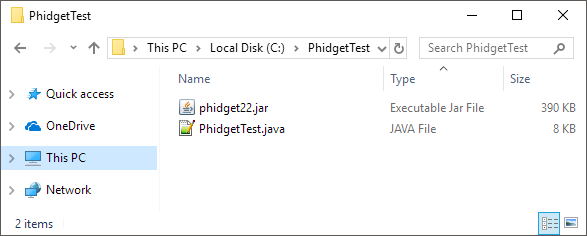 |
| You can download phidget22.jar here. | |
Once you are ready to run your program, enter the following command in the command prompt or terminal:
javac -classpath .;phidget22.jar example.javaFinally, enter the following command to run the program: java -classpath .;phidget22.jar example |
Netbeans
| The easiest way to allow Java to access the Phidgets Java library is to place a copy of phidget22.jar in the same folder as your .java program. | |
| You can download phidget22.jar here. | |
| To start, open NetBeans and create a new project. Select Java Application and follow the steps as directed by Netbeans. | 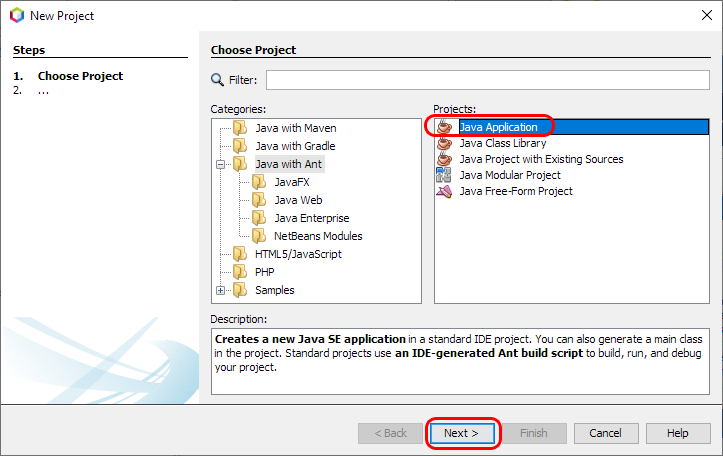 |
| Next, add a reference to phidget22.jar by right-clicking on the libraries folder. | 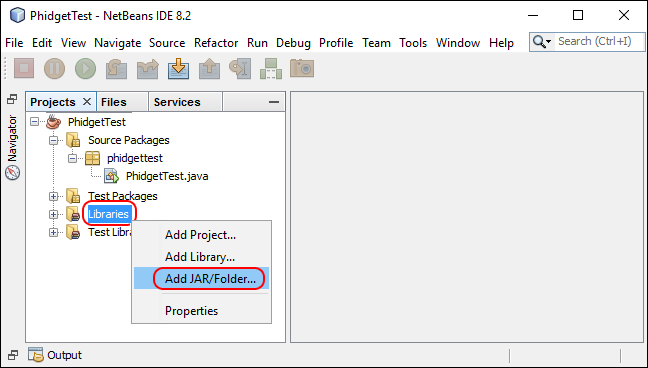 |
| Navigate to the folder where you downloaded phidget22.jar, and select it. | 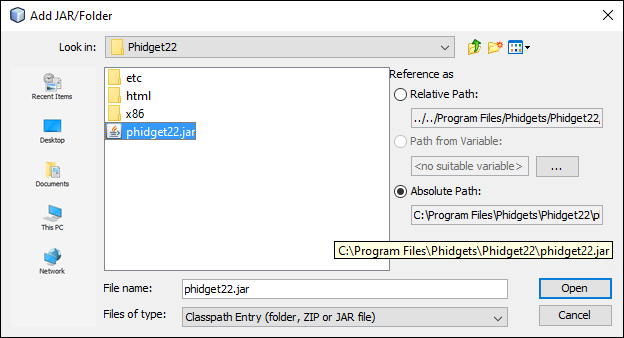 |
| The project now has access to Phidgets. |
Eclipse
| The easiest way to allow Java to access the Phidgets Java library is to place a copy of phidget22.jar in the same folder as your .java program. | |
| You can download phidget22.jar here. | |
| To start, open Eclipse and create a new Java project. | 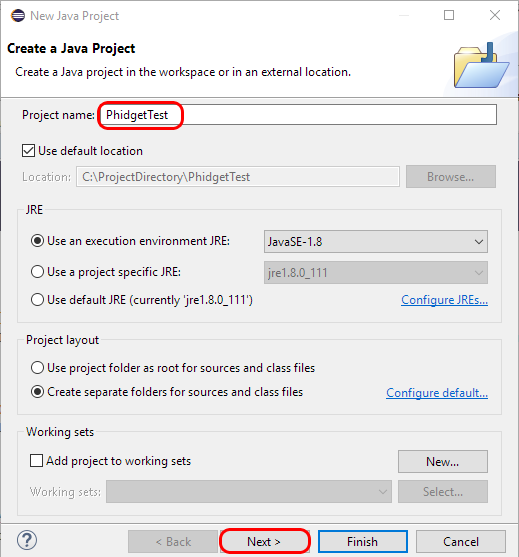 |
| On the Libraries tab, click Add External JARs and add phidget22.jar to your project as an external jar. | 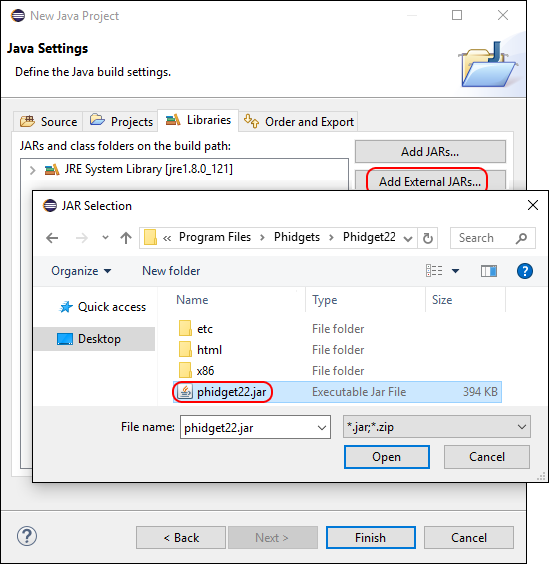 |
| Create a new Class in your project. | 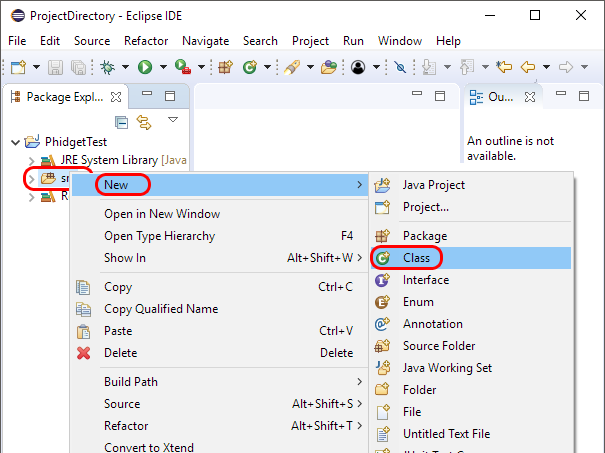 |
| Name the class, and be sure to check the public static void main box. | 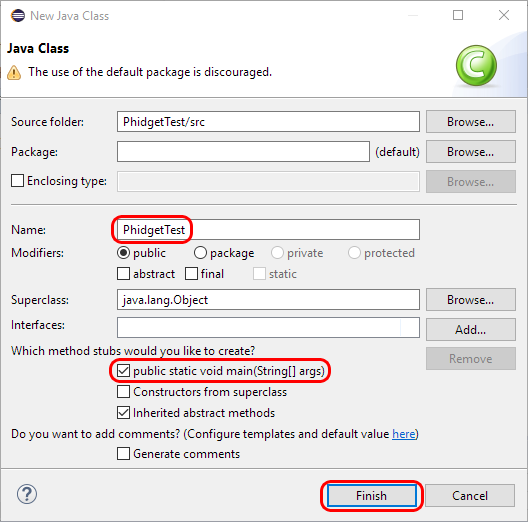 |
| Your project now has access to Phidgets! |
PhidgetSBC Web Interface
Example Code
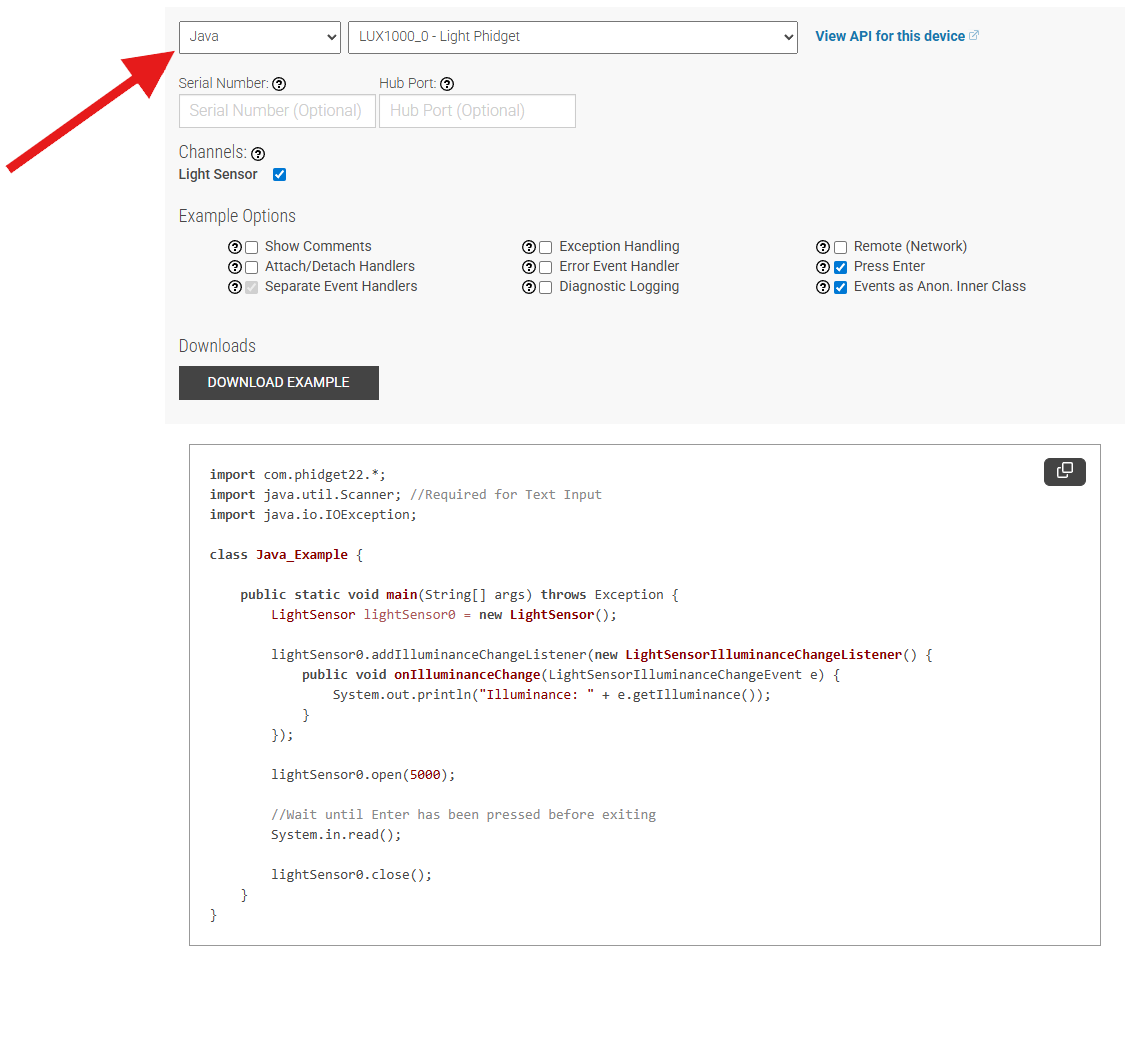
Navigate to our Code Sample Generator to view and download code samples that are tailored to your specific device.
Phidget Programming Basics
To learn more about the structure of the example code, visit our Phidget Programming Basics guide.