|
|
| (378 intermediate revisions by 10 users not shown) |
| Line 1: |
Line 1: |
| {{ContentNeeded|Please note, this page is not complete. The most recent completed OS page is [[OS - Linux]].}}
| | <metadesc>Communicate over USB with sensors, controllers and relays with Phidgets! Program in Windows using a wide variety of programming languages.</metadesc> |
| | |
| [[Category:OS]] | | [[Category:OS]] |
| [[File:icon-Windows.png|64x64px|link=OS - Windows]]On Windows, Phidgets can be either plugged directly into a USB Port or run over a network using the [[#Webservice | Webservice]].
| |
|
| |
| __TOC__
| |
|
| |
| Phidgets are designed to run on '''Windows 2000 or newer'''.
| |
|
| |
| ==Getting Started (Libraries and Drivers)==
| |
|
| |
| If this is your first Phidget, we highly recommend working through the Getting Started guide [[Device List|for your specific Phidget device]]. If you already have the [[File:Ph.jpg]] icon in your task bar and know how to use it, then you've already followed the guide and are ready to learn more about the control panel, the Phidget Webservice, and more - all specific to Windows.
| |
|
| |
| If you are already a pro, and just want the drivers:
| |
|
| |
| *[http://www.phidgets.com/downloads/libraries/Phidget-x86_2.1.8.20111028.exe 32 Bit]
| |
| *[http://www.phidgets.com/downloads/libraries/Phidget-x64_2.1.8.20111028.exe 64 Bit]
| |
|
| |
|
| |
| For special cases where you cannot install the Phidget installer, please see here<br/>
| |
| To manually install the Phidget libraries without the installer, please see [[Phidget Libraries - Windows|here]].
| |
| *[http://www.phidgets.com/downloads/libraries/Phidget21-windevel_2.1.8.20110615.zip Phidget21 Libraries] (32-Bit and 64-Bit development files without an installer)
| |
| *([http://www.phidgets.com/Drivers_Info.html#windows software license])
| |
|
| |
| ===Installing===
| |
|
| |
| ===Checking===
| |
|
| |
| ====Software====
| |
|
| |
|
| |
|
| |
| ====Hardware====
| |
|
| |
| This should show you how to use the device manager in Windows to make sure the Phidget is attached
| |
|
| |
| ====Troubleshooting====
| |
|
| |
| *Confirm prerequisites (Windows 2000 or newer and has .NET Framework 2.0.)
| |
| *Walk through ALL known conflicting drivers
| |
| *Suggest attributes of unknown conflicting drivers
| |
| *Get people to the troubleshooting page if a non-OS problem is suspected
| |
|
| |
| See the [[OS - Linux#Troubleshooting|Linux Troubleshooting]] page.
| |
|
| |
| ==Programming Languages==
| |
|
| |
| After you have installed the drivers above, you should pick a programming language, install libraries, and run the examples for that specific language.
| |
|
| |
| Phidgets’ philosophy is that you do not have to be an electrical engineer in order to do projects that use devices like sensors, motors, motor controllers, and interface boards. All you need to know is how to program.
| |
|
| |
| On Windows, we recommend the following languages:
| |
|
| |
| *[[Language - C Sharp|C#]]
| |
| *[[Language - C/C++|C/C++]]
| |
| *[[Language - Flash AS3|Flash AS3]]
| |
| *[[Language - Flex AS3|Flex AS3]]
| |
| *[[Language - Java|Java]]
| |
| *[[Language - LabVIEW|LabView]]
| |
| *[[Language - Max/MSP|Max/MSP]]
| |
| *[[Language - Python|Python]]
| |
| *[[Language - Ruby|Ruby]]
| |
| *[[Language - Visual Basic .NET|Visual Basic .NET]]
| |
| *[[Language - Visual Basic 6.0|Visual Basic 6.0]]
| |
|
| |
| You can also use these languages, but they do not support [[General Phidget Programming#Event Driven Code | event driven code]], and must use [[General Phidget Programming#Logic Code | logic code]] only:
| |
|
| |
| *[[Language - MATLAB|MATLAB]]
| |
| *[[Language - Simulink|Simulink]]
| |
|
| |
| The following languages are also supported, but to to a lack of demand, they full API is not implemented. Please refer to the specific language for more information on what features are unsupported.
| |
| *[[Language - Delphi|Delphi]]
| |
| *[[Language - Visual Basic for Applications|Visual Basic for Applications]]
| |
| *[[Language - Visual Basic Script|Visual Basic Script]]
| |
| *[[Language - LiveCode|LiveCode]]
| |
| *[[Language - REALBasic|RealBasic]]
| |
| *[[Language - Adobe Director|Adobe Director]]
| |
| *[[Language - AutoIt|AutoIt]]
| |
|
| |
| ==Webservice==
| |
|
| |
| Short description of the webservice on Windows (i.e. which files are the drivers, note that it is automatically on, etc)
| |
|
| |
| Drivers for the Phidget Webservice on Windows are already included in the [[#Getting Started (Libraries and Drivers) | Drivers]] above.
| |
|
| |
| If you have a [[File:Ph.jpg]] icon in your taskbar, you already have the Webservice drivers installed.
| |
|
| |
| ===Turning the Webservice On and Off===
| |
|
| |
|
| |
| ===Setting Up the Webservice===
| |
|
| |
| How to find the port, computer IP, computer bonjour name,
| |
|
| |
| ===Using the Webservice===
| |
|
| |
| A walkthrough in C# (or C) of how to write a remote program and screenshots of it running on localhost (127.0.0.1)
| |
|
| |
| ===Debugging the Webservice===
| |
|
| |
| Examples of common errors in webservice-using code
| |
|
| |
| Is there a way to enable debugging like there is on Linux?
| |
|
| |
| ==Advanced Uses==
| |
|
| |
| ===Manual File Installation===
| |
|
| |
| A description of the installer and what it does, and how to do it manually
| |
|
| |
| ====Description of Files====
| |
| phidget21.h installed into .... it does...<br/>
| |
| phidget21.lib
| |
| <br/>phidget21.dll<br/>
| |
| Phidget Control Panel<link>
| |
|
| |
| also explain the extra files that are installed as part of the 64 bit installer.
| |
|
| |
| ====Special Cases of Library Install====
| |
|
| |
| If you wish to only install the things you need, please refer to your language page for instructions on how to manually install the libraries for your language.
| |
| <br/> also explain even more special cases on 64bit systems, if applicable(ie, c.
| |
|
| |
|
| |
|
| |
|
| |
|
| |
|
| |
| ==Common Problems and Solutions==
| |
|
| |
|
| |
|
| |
| ===Prerequisites===
| |
|
| |
|
| |
|
| |
|
| |
|
| |
|
| |
| ==Phidget Control Panel==
| |
| Explain the control panel
| |
| Not the go to option for controlling your device
| |
| <br/>
| |
| It is important to keep in mind that when an example Phidget application is opened from the control panel, it holds a lock on the Phidget. This prevents any other program from accessing the Phidget. Please ensure that this example application is closed(the Phidget Control Panel can still be running) when you are running your own applications.
| |
|
| |
| ==Common Problems and Solutions==
| |
| ===Issue: Installing .NET 2.0 on Windows 2000.===
| |
| Affected Operating Systems: '''Windows 2000'''
| |
|
| |
| To install the Phidget Framework on Windows 2000 systems, the .NET 2.0 framework is required.
| |
| Also, although not explicitly required to use Phidgets on a Windows system, Phidgets under the .NET languages can use .NET 2.0.
| |
|
| |
| Solution: The Microsoft .NET Framework Version 2.0 Redistributable Package for (x86) and (x64)
| |
| systems is freely available from www.microsoft.com. You will need to upgrade to at least Windows
| |
| 2000 Service Pack 3 for the (x86) version.
| |
|
| |
| ===Issue: A corrupt installation fails on uninstall or repair===
| |
| Affected Operating Systems: '''Windows'''
| |
|
| |
| Solution: If the normal uninstall fails, or for whatever reason, you can choose to remove the Phidgets framework manually.
| |
| Please perform the following:
| |
| # Shut down any programs using the Phidget libraries, including the webservice and the Phidget Control Panel.
| |
| # Delete C:\Program Files\Phidgets\
| |
| # Remove the Phidgets key from the Registry [-HKEY_LOCAL_MACHINE\SYSTEM\CurrentControlSet\Services PhidgetWebservice21].
| |
|
| |
| In most cases this is enough to get the installer working again. If you need to remove all traces of
| |
| the Phidgets libraries manually, perform the following additional steps:
| |
|
| |
| # Unregister the COM library: regsvr32 /u “C:\Program Files\Phidgets\Phidget21COM.dll”
| |
| # Remove Phidget21.NET and Policy.2.1.Phidget21.NET from C:\Windows\Assembly\
| |
| # Delete ‘C:\Documents and Settings\All Users\Application Data\Phidgets’ (WindowsXP) or ‘C:\Users\All Users\Phidgets’ (Vista).
| |
| # Delete C:\Windows\system32\phidget21.dll
| |
| # Delete Phidgets from the start menu
| |
| # Search for and remove keys mentioning Phidgets from the registry in the following locations:
| |
| :* [HKEY_LOCAL_MACHINE\SOFTWARE\Microsoft\Windows\CurrentVersion\Uninstall\]
| |
| :* [HKEY_LOCAL_MACHINE\SOFTWARE\Classes\Installer\Products\]
| |
| :* [HKEY_LOCAL_MACHINE\SOFTWARE\Microsoft\.NETFramework\AssemblyFolders\Phidgets Inc]
| |
| :* [HKEY_CURRENT_USER\Software\Microsoft\Windows\CurrentVersion\Run\Phidget21Manager]
| |
| :* [HKEY_LOCAL_MACHINE\SOFTWARE\Classes\Installer\Assemblies\Global\]
| |
|
| |
| :9. Reboot
| |
|
| |
| '''NOTE:''' You can go through the registry and purge any other keys mentioning Phidgets if you still
| |
| have problems, but at this point you should be able to reinstall under most cases. There will also be
| |
| keys relating to the installer, the .NET library and the COM library, but they should not interfere with
| |
| anything.
| |
|
| |
| ===Issue: Some third party software prevents communications with Phidgets ===
| |
| Affected Operating Systems: '''Windows'''
| |
|
| |
|
| Some drivers or software will sometimes mistakenly claim Phidget devices when waiting on some hardware to be connected.
| | ==Quick Downloads== |
| Please see: [[Communication Protocols#Issue: Some third party software prevents communications with Phidgets|Some third party software prevents communications with Phidgets]]
| | Our libraries support Windows 8 and newer. |
|
| |
|
| ===Issue: Event data is sporadic/slow/clumped over the webservice===
| | *[https://cdn.phidgets.com/downloads/phidget22/libraries/windows/Phidget22-x64.exe Installer Download (64-bit)] |
| Affected Operating Systems: '''Windows'''
| | *[https://cdn.phidgets.com/downloads/phidget22/libraries/windows/Phidget22-ARM64.exe Installer Download (ARM64)] |
| | *[https://cdn.phidgets.com/downloads/phidget22/libraries/windows/Phidget22-x86.exe Installer Download (32-bit)] |
|
| |
|
| Windows implements 200ms delayed ACKs for network traffic. When traffic is one-way only - as it is with event data, the data will all arrive in clumps every 200ms because of delayed ACKs. | | ===Other Resources=== |
| | * [[OS - Windows Advanced Information|Windows Advanced Information]] |
| | *[https://cdn.phidgets.com/downloads/phidget22/libraries/windows/Phidget22-windevel.zip Windows Development Files] |
| | * [https://www.phidgets.com/downloads/phidget22/libraries/windows/ Previous Releases] |
|
| |
|
| This can be a great drawback for application which rely on low latency event data over the network. (source: http://support.microsoft.com/kb/214397)
| | ==Getting Started with Windows== |
| | ===Install=== |
| | To get started, download the appropriate [[#Quick Downloads|installer]] for your machine from the list above. This will install the Phidget Control Panel and the Phidget Network Server. These are powerful tools that will help you develop your Phidget applications. |
|
| |
|
| This delayed ACK behavior can be disabled in windows to decrease event latency as documented here: http://support.microsoft.com/kb/328890
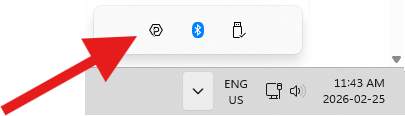
| | ===Phidget Control Panel=== |
| | After installing, you can find the application through your system tray, or by opening the start menu and searching for ''Phidget Control Panel''. |
|
| |
|
| In the future, the Phidgets library may implement this differently, but so far we have been unable to match the performance achieved by disabling delayed ACK.
| |
|
| |
|
| ===Issue: My virtual machine is not detecting USB Phidgets===
| | [[Image:Os_windows_systemtray.png|link=|center]] |
| Affected Operating Systems: '''Windows'''
| |
|
| |
|
| Please ensure that you have the latest Phidget [[#Getting Started (Libraries and Drivers) | drivers]] installed on your host operating system and that you are using the latest version of your virtual software.
| |
|
| |
|
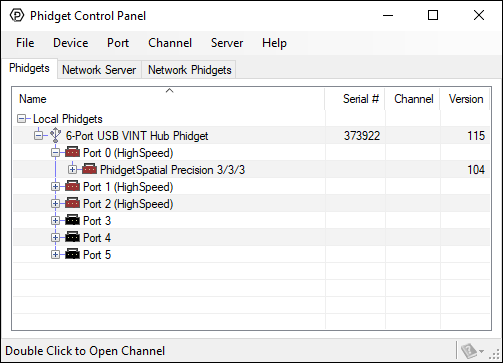
| {{ProblemSolution|VMWare|}}
| | After opening, you will see all the Phidgets that are plugged into your machine, as well as any Phidgets that are on your network. |
|
| |
|
| To enable USB Phidgets, select Virtual Machine -> Removable Devices -> and select the Phidget Input Device -> Connect.
| |
|
| |
|
| <br/>
| | [[File:Windows ControlPanel General.PNG|link=|alt=Windows Control Panel General|center]] |
| {{ProblemSolution|VirtualBox|}}
| |
|
| |
|
| To enable USB Phidgets, VirtualBox Guest Additions(Devices -> Install Guest Additions) may need to be installed. Afterwards, click on Devices -> USB Devices and select the Phidget device to enable. The state should go from Busy to Captured. VirtualBox may bring up a new hardware wizard in the host operating system, which has to be installed. Please note that Phidgets with USB hubs(i.e, [[Product - 1019 1 - PhidgetInterfaceKit 8/8/8 w/6 Port Hub|1019]]), are undetectable; Fortunately, Phidgets that are attached to such Phidgets are detectable.
| |
|
| |
|
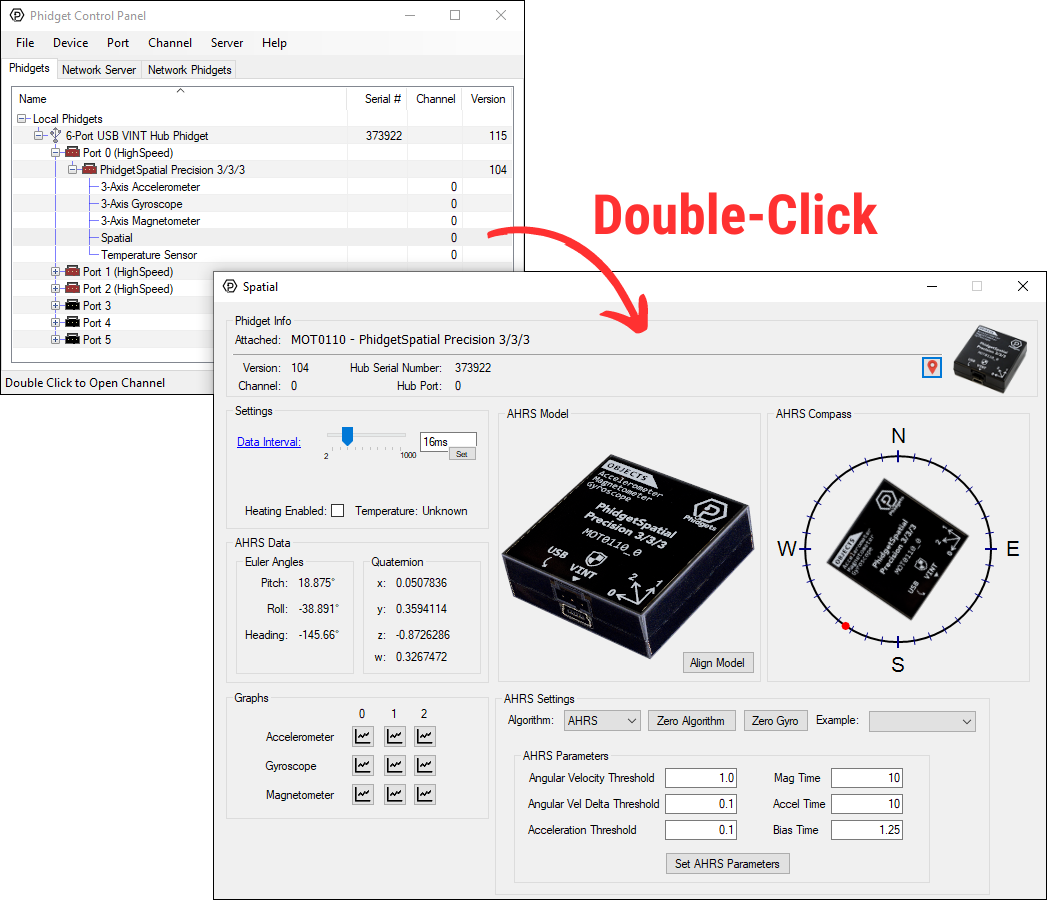
| <br/>
| | Click on the '''+''' beside a device to expand it so that you can see all available channels. Double-click on one of these channels to open up a window that lets you interact with it. |
| {{ProblemSolution|Virtual PC|}}
| |
|
| |
|
| USB Phidgets requires a virtual platform that supports HID USB Devices. Since Virtual PC does not support HID USB devices, Phidgets may not be used. However, other virtualization software can be used such as VMware and VirtualBox.
| |
|
| |
|
| ===Issue: My system has a .NET version earlier than 2.0, and cannot run the Installer === | | [[File:Controlpanel_openapplication.png|500px|link=https://cdn.phidgets.com/docs/images/b/bd/Controlpanel_openapplication.png|alt=Windows Control Panel General|center]] |
| Affected Operating Systems: '''Windows'''
| |
|
| |
|
| For the best compatibility, it is recommended that you install the most up to date .NET version. However, if there are certain circumstances that prevent you from installing .NET 2.0 or higher, you can still control Phidgets. The drivers can be manually installed - check our [[Manual Installation Instructions]].
| |
|
| |
|
| The need for .NET 2.0 is because certain Phidgets features were built with .NET 2.0. Features include Phidget Control Panel, examples, and PhidgetWebService. | | The Phidget Control Panel can be used for testing devices, updating firmware, enabling a Phidget Network Server, and more. Visit the [[Phidget Control Panel|Phidget Control Panel page]] for more information. |
|
| |
|
| ===Issue: Using the PhidgetWebservice without Bonjour === | | ===Programming=== |
| Affected Operating Systems: '''Windows'''
| | When you are ready to develop your own applications, visit our [{{SERVER}}/docs/Programming_Resources programming resources page] and select your programming language to get started. |
|
| |
|
| Bonjour allows you to connect to a device over the PhidgetWebService by only specifying a server name. Without Bonjour on your system, you won't be able to use this method. Fortunately, you can connect to the Phidget by specifying the IP address and port.
| | ==Software License== |
| | By downloading the installer and/or development files, you agree to adhere to the terms of the [{{SERVER}}/documentation/Licenses/Phidgets_EULA.pdf Phidgets End User License Agreement]. The Phidget libraries and development files are covered by the The 3-Clause BSD License. |